Crafting Checks
Crafting checks let you gate recipe outcomes on a player roll.
When a crafting system uses the Routed by check resolution mode, or the Progressive resolution mode, a check is required to determine which result the crafter receives. The check is configured at the system level on the Crafting page of the Checks screen in the Crafting Admin panel. That page’s shape follows the system’s resolution mode: simple and Routed by ingredients author a pass or fail check, Routed by check authors named outcome tiers, and progressive rolls for a numeric value. Alchemy follows its own Alchemy check setting: Simple check authors a pass or fail check, and Tiered check authors named outcome tiers. The pass or fail check is optional in simple and Routed by ingredients modes. It is optional in Alchemy mode too: a Simple alchemy check has an Active switch you can turn off, which resolves every matched brew as a success. A Tiered alchemy check is required, because it routes result sets by outcome tier and so cannot resolve without a roll. The outcome-tier check is required in Routed by check mode. Each attempt runs the check automatically. When that check runs relative to the spend depends on how the craft was started.
A run you START and then resolve from the Journal spends its materials when the stage begins, and rolls the check afterwards, when you resolve that stage. If the check fails and the system’s Consume ingredients on failure setting is off, what the stage spent is returned to you. A one-call craft that resolves immediately — a macro or API craft(), with no run to begin — rolls the check first and consumes only afterwards, so a failure under that same setting never takes anything in the first place.
Dynamic DC macros
A GM can have a Macro calculate the difficulty for each crafting attempt. On Checks › Crafting, open The roll section, find the Difficulty card and choose Dynamic under How the number is set. Then drag the Script Macro you want to use into the DC macro area below it. The macro calculates only the DC. It does not roll the check or choose the crafting result. If no Macro is linked, the Macro fails, or it cannot provide a usable number, Fabricate falls back to the recipe’s chosen difficulty tier when it has one, and to the configured static DC when it does not. See the Dynamic DC Macro API example for the supported inputs and a working Script Macro.
This section covers a Fixed difficulty target. Under a Character value target the same control is labelled How the adjustment is set instead, and choosing Dynamic there hands the macro the character value already adjusted by the recipe’s tier, asking it to return the number to reach or roll under, rather than a DC. See Roll-under and character-value checks.
Named difficulty tiers
Named difficulty tiers on the check, together with a per-recipe tier selection, give you per-recipe difficulty with no macro at all. You author the tiers themselves on the Crafting page of the Checks screen, where each one carries a name and the DC it puts in place of the base DC. Under a Character value target, a tier instead carries a Difficulty adjustment in place of the base adjustment, and a tier left without one falls back to the base adjustment and is flagged on Validation. See Roll-under and character-value checks. Each tier row has a drag handle and up and down buttons beside it, so you can reorder your named tiers by dragging a row’s handle or by focusing it and using the arrow keys.
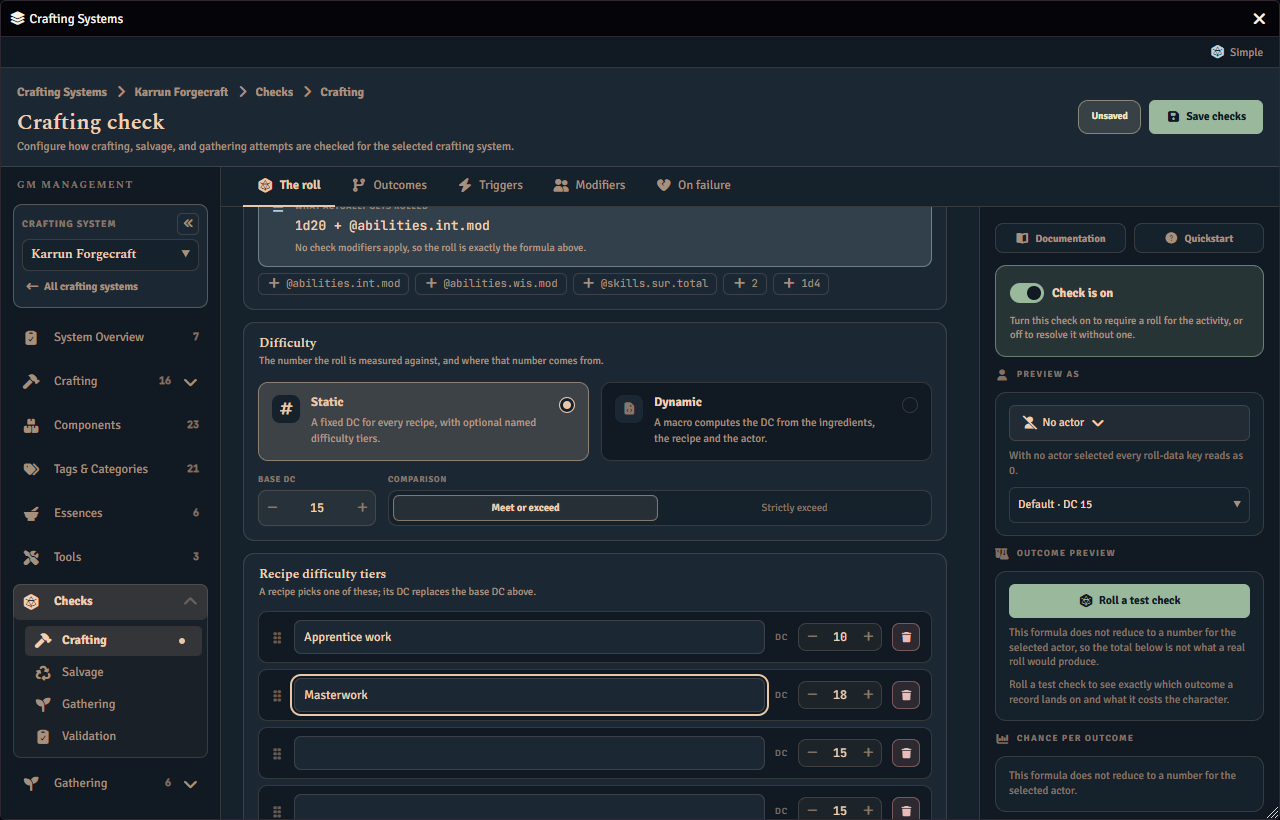
Where a dynamic DC macro is also in play, the recipe’s chosen tier resolves first, and the macro is handed that value as its starting point. If the macro is missing, throws, or returns something that is not a number, the tier’s DC still stands. The two features compose rather than compete.
On a simple pass/fail check, the per-recipe Check tier control is only offered on a recipe’s Overview tab while that check’s difficulty is set to Static. Switching a simple check to Dynamic removes that control from every recipe’s Overview tab. Fabricate still honours a tier a recipe already had chosen, so the composition above is real, not only theoretical. On a simple check, choose the recipe’s difficulty tier while the check’s difficulty is Static. A tier you already chose keeps setting the starting point the macro adjusts, even after you switch that check to Dynamic. See Dynamic DC macros.
Rolling a check from the UI
When a player crafts or gathers from the Fabricate UI, the check is rolled interactively. Fabricate opens a small dialog that shows the check, its difficulty, and the formula about to be rolled. The dialog has a Roll button, a Cancel button, and a Situational bonus field for a one-off modifier. Type a number into Situational bonus to add it to this roll, for example a bonus from a spell or a helping hand. Leave the field blank to roll the check as configured. An entry that is not a valid modifier is ignored, and the check rolls with its base formula.
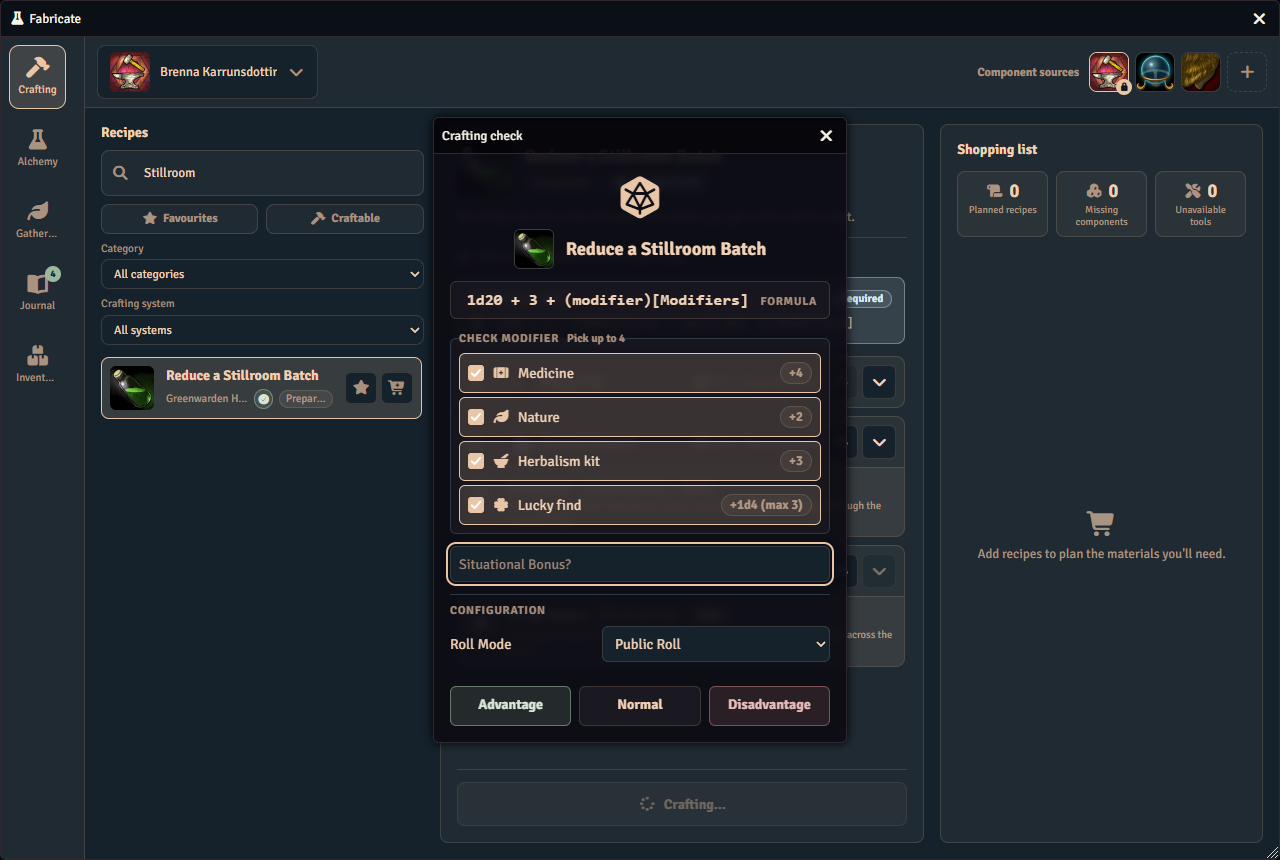
Clicking Roll evaluates the check and posts the result to chat as a normal roll card. The roll uses your current chat roll mode, so a private or blind roll stays hidden from other players in the usual way. The result card states the roll total only for a public roll; a private, blind, self or secret check’s card states its outcome alone. If the Dice So Nice module is installed, it animates the 3D dice for that roll. Dice So Nice is optional. Without it the roll still posts to chat as a normal roll card, just with no 3D animation.
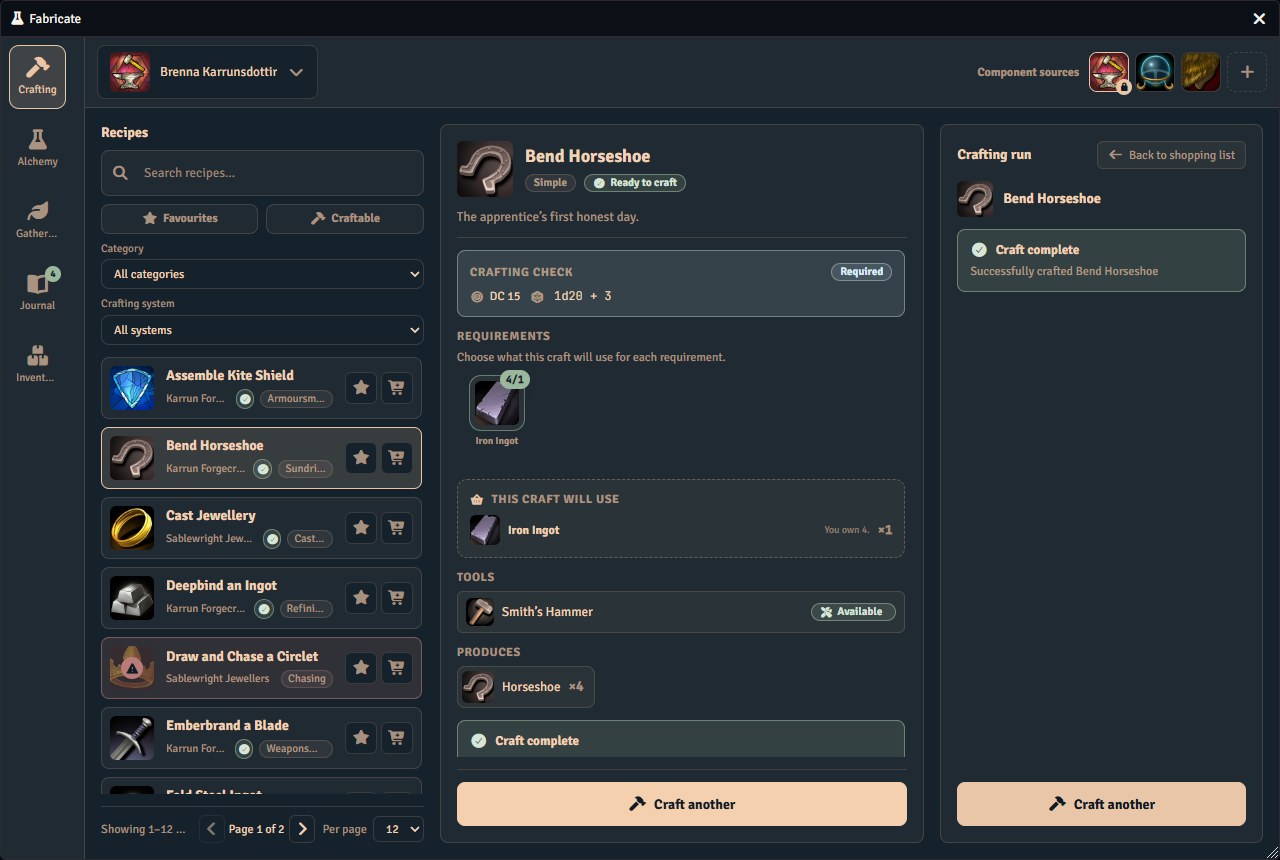
The Crafting tab also reports the outcome in place, so a player can see what the attempt produced without leaving the window.
Clicking Cancel, or dismissing the dialog, aborts the attempt with no changes. No ingredients, currency, or Tools are consumed, and no run is recorded.
This interactive prompt is the default when you craft from the Crafting tab, salvage from the Salvage tab, or gather from the Gathering screen. It applies to the crafting, salvage, and gathering checks that run through the shared check step. A bulk salvage prompts once for the whole batch, and applies that one answer to every roll in it. That one prompt sets the bonus, the roll mode and advantage only. See Salvage for the batch behaviour. Some rolls never prompt:
- The immediate d100 gathering mode rolls without a prompt, because it resolves outside the shared check step.
- Timed and maturation crafting steps, and timed gathering tasks, do not prompt, because they resolve later when the Game Master advances world time.
- A batch with nothing in it to roll skips the prompt entirely.
Macros and automation that call Fabricate directly keep the original silent behaviour and never prompt.
How a routed check is rolled
In a Routed by check system, the crafting check rolls its configured expression at the moment of crafting and maps the total onto one of the outcome tiers you defined. That tier’s name is the outcome that selects the result set, after any tier step a matching trigger applies. See Routed Modes for how that outcome is matched to a result.
In Routed by ingredients mode the crafting check is the same optional pass or fail check that simple mode uses, not an outcome-tier check. The ingredients used select the result. The check only gates whether the craft succeeds, and it is optional, so with no roll formula the craft proceeds with no check.
Relative and fixed tiers
A routed check’s outcome tiers are authored as either Relative or Fixed, chosen with the Check type control at the top of the Outcomes section. The two types map the roll to an outcome in different ways.
Relative tiers are positioned against a DC. Each tier threshold is expressed relative to the recipe’s difficulty, for example DC -5 or DC +10. The base difficulty comes from the recipe’s selected tier, or from a dynamic difficulty macro when you set one up. This is the same difficulty source a simple check uses. The recipe tier or dynamic difficulty shifts every tier threshold together, so a harder recipe makes every outcome harder to reach. A roll that falls below every relative tier still maps to the lowest tier, so a higher difficulty never produces a craft with no outcome. The Difficulty card shows the DC and the meet-or-exceed comparison for relative tiers, because both take part in matching. The player’s check card shows this resolved difficulty-tier DC, the same number the interactive roll prompt uses and the chat card reports.
Fixed tiers own non-overlapping segments of the roll value range instead. Each tier covers a fixed span of possible roll totals, and the roll is matched to whichever tier’s range contains its total. A fixed check has no DC, so the recipe tier and dynamic difficulty do not move its thresholds. That card hides the DC and the meet-or-exceed comparison when a Routed by check system uses fixed tiers, because a DC is meaningless in that mode. The player’s check card and the interactive roll prompt likewise drop the DC chip for a fixed routed check.
Fixed tiers are shared across every recipe in the system. A recipe can still carry its own difficulty on top of a fixed check by setting a minimum success tier. See Minimum success tier for fixed routed checks.
Developers configuring a custom check for a non-D&D-5e system should refer to the API reference for the expected setup.
Outcome bands
The Outcomes section draws the tiers as one continuous Outcome bands strip above the tier rows, with a handle on each transition point between two neighbouring tiers. Drag a handle, or focus it and use the arrow keys, to move that threshold. The numbers in the tier rows remain the authority, and the strip and the rows edit the same values.
A handle can never be dragged past its neighbour, so moving one narrows a tier and never reorders your tiers. The outermost values have no handle at all, because they are not transitions between two tiers. The bottom of the first tier and the top of the last are set in the rows. On a relative check the handles read the difficulty numbers the offsets resolve to, while the rows read the offsets you authored. Preview against, above the strip, chooses which difficulty they resolve against. It offers the check’s own DC, which is the default, and each named difficulty tier the check carries, each labelled with its DC. It appears only once the check has at least one tier to offer, and it is a reading aid alone. Choosing one re-labels the strip and changes nothing you have authored.
This draggable strip is a Higher is better check measured against a Fixed difficulty only. A Lower is better check, or one measured against a Character value, draws the same tiers as a read-only picture with no handles, and you edit the thresholds in the tier rows instead. See Roll-under and character-value checks.
Fixed tiers must not overlap, and must leave no value between the lowest and the highest belonging to no tier. Either fault makes the tiers impossible to draw as one strip, so the strip steps aside with a note and leaves the rows to edit. The Validation page reports both as blocking issues, because a roll landing in a gap matches no tier and the attempt cannot be routed.
Tier stepping
A check trigger can move the outcome tier a roll landed on. This is the trigger’s Tier step setting, and it replaces the old system-wide Natural tier stepping toggle.
You author it on the trigger itself, next to the condition that trigger watches, so you choose the dice, the values, and how far the tier moves. It is available on every Routed by check crafting, salvage, and gathering check, with Relative or Fixed tiers alike. See Tool breakage triggers for how a trigger’s condition is authored; a trigger does not have to break anything to step a tier.
Each trigger’s Tier step offers four choices:
- No step leaves the tier alone, and is the default.
- Step up moves the tier up by the number of steps you set.
- Step down moves it down by that number.
- Target tier moves it to one named tier you pick, whatever the roll landed on.
For example, say your check has the tiers Ruined, Poor, Fine, and Masterwork, and you want a fumble to spoil the work. Add a trigger that watches the d20 group for a 1 and set its Tier step to Step down 1. A roll that would have landed on Poor now lands on Ruined instead. Add a second trigger watching that group for a 20 and set it to Step up 1, and a natural 20 that landed on Fine now produces Masterwork.
A step does not have to key off the dice at all. Set a trigger’s When to Outcome tier, tick Poor, and set its Tier step to Step down 1, and every roll that lands on Poor slides to Ruined whatever the dice showed. An outcome-tier trigger can step the tier even though it can never force the outcome; see Tool breakage triggers for the full When list.
Several triggers can match the same roll, and their steps combine. Up and down steps add together, so two triggers each stepping up one move the tier up two, and one up and one down cancel out and change nothing. If more than one matching trigger sets a Target tier, the lowest of those tiers wins, so competing targets never depend on the order you added the triggers in. A target is applied first, and any up or down steps then move on from there.
A step that would run off the end of the tier list stops at the highest or lowest tier rather than doing nothing. Step up 3 from the second-highest tier lands on the highest.
A Target tier naming a tier the check no longer has does nothing at all. This is easy to reach by accident, because switching a check between Relative and Fixed tiers replaces the whole tier list. The trigger shows the missing tier and the Checks Validation page warns you about it, so pick one of the check’s current tiers to fix it.
A trigger’s condition always looks at the tier the dice landed on, never at the tier a step produced. That means an outcome-tier condition can drive a step, and steps can never chain into each other.
A trigger that forces the outcome still decides success or failure. A step then moves the tier only among the tiers that share that result: a forced success stays on a successful tier and a forced failure stays on a failing one. So a step can never turn an Automatic success into a failed craft, and the tier name a player sees always agrees with the result they got. Where no outcome is forced, the tier after stepping decides everything — whether the craft succeeds, which result set it produces, and whether tools break — so a step down onto a failing tier does fail the craft.
A recipe’s minimum success tier on a Fixed check is judged after stepping. A step down can therefore push a craft below the recipe’s minimum, and a step up can lift it over. See Minimum success tier for fixed routed checks.
If the roll matched no tier at all — a Fixed check whose total falls outside every range you authored — nothing steps, Target tier included. Author a range that covers those totals instead of relying on a step.
When a step actually changes the tier, the crafting or salvage result explains the step in chat. A Step up or Step down note says how many tiers it moved. A Target tier note just says the roll was moved to the target tier. A step that changes nothing says nothing. Gathering checks step their tier the same way, but do not report the step in chat.
If you already had Natural tier stepping switched on, Fabricate converts it for you. The next time the system is loaded, that check gains two triggers: one watching the first d20 group for a 20 that steps up one, and one watching it for a 1 that steps down one. Nothing is lost, you do not need to do anything, and you can now edit, delete, or extend those triggers like any others.
On failure
A failed check has two separate questions, and the On failure section of each check route asks both. What does the failure PRODUCE, and what does it COST? They are independent, so you can author any combination of them.
Produce a result on a failed check
The Produce a result on a failed check card decides whether a failed check can still hand the crafter something — a ruined ingot, a torn hide, scraps. It has three settings.
- Never. A failed check produces nothing at all.
- Decided per recipe. Each recipe chooses for itself, so most fail with nothing while a few still yield a failure result. This is what a system you create now starts on.
- Always. Every failed check produces its failure result.
The setting selects a failure output you have already authored; it never invents one. A recipe with no failure result produces nothing on a failure even under Always, so switching to Always cannot make an existing recipe start handing out items you did not write.
Where you author that output depends on the resolution mode. In simple mode and in Alchemy’s Simple check mode it is the recipe’s reserved failure result set. A recipe has none until its group is added through Award results on a failed check on the Results tab of a single-step recipe. A step of a multi-step recipe does not offer that toggle yet. Turning that on adds an empty On a failed check set, drawn locked with a reserved role badge. Turning it off removes the set and its results. An empty failure set is allowed, and a failed check then produces nothing. Under Never, a recipe with no failure set shows the toggle switched off and disabled, and a button opens this check so you can change the setting. A failure set the recipe already has stays drawn, and the toggle can still remove it, but it awards nothing while the setting is Never. In Routed by check mode it is an outcome tier you have marked as a failure: while this setting permits failure results, those tiers appear in the Assign list on the result set’s Produced by line and you bind a result set to them exactly as you would to a success tier. Turn the setting back to Never and they stop being offered and stop routing — but nothing you authored is deleted, and it all comes back when you permit failure results again.
Routed by ingredients and Progressive have no failure outcome to mark, so the setting is inert in those modes and the section says so rather than showing a control that does nothing. Salvage and gathering each have their own copy of this setting on their own check route. Gathering’s applies to a task resolved by Check and is inert for a d100 task, which has no failure outcome to produce.
What a failure costs
Two toggles on the On failure section of Checks › Crafting set the consumption half of the policy for the whole system.
- Consume ingredients on a failed check is on by default. The recipe’s ingredients are used up even when the crafting check fails. Turn it off to return the ingredients on a failed check, so a failed attempt costs the crafter nothing.
- Break tools on a failed check is off by default. Turn it on to allow normal Tool breakage evaluation after the crafting check fails.
This consumption policy applies to every failed crafting check in the system, across the simple, Routed by ingredients, Routed by check, and Progressive modes. It does not appear in Alchemy mode, where a failed brew follows the system’s own Consume on Fail setting instead. Salvage failures follow their own separate policy, so this control does not change what a failed salvage consumes. The Checks › Salvage route’s own On failure section is where you set it — Consume the item on a failed check (on by default) and Break tools on a failed check (off by default). Those two settings have always been part of a salvage system; before this release there was simply no screen that showed them. See Salvage.
Upgrading from a version before 1.25.0
A system you already have keeps behaving exactly as it did: the upgrade sets Produce a result on a failed check to Never on every check it finds, on every system. That is deliberate rather than cautious. A salvageable item may already carry a failure result set that has never been awarded, because no version of Fabricate before this one could award one — and turning the setting on for you would start handing that loot out on every failed salvage with no warning. Only systems you create after upgrading start on Decided per recipe. Turn it on yourself, per activity, per system, when you want it.
The Break tools on a failed check toggle permits breakage on the failure path. The system’s breakage source still decides whether Tool-specific mechanics or matching check triggers determine the break.
Tool breakage triggers
You can let a check decide whether the required Tools break for an attempt, so the same roll that picks the result also decides whether the Tools survive.
A check’s trigger list is one list with three effects per trigger: forcing the outcome, stepping the outcome tier (see Tier stepping), and breaking Tools. This section covers the last of them and the conditions all three share. Only the Tool-breaking effect depends on the system’s breakage source; a trigger can force an outcome or step a tier whatever that source is set to.
Breaking Tools from a check is only available when the system’s Tool breakage source is set to Check-driven. You set that on the system’s Tools page (see Tool breakage source). While the source is Tool-specific, each Tool decides for itself and the break-Tools option is hidden from every trigger.
When the source is Check-driven, each check’s Triggers section can include Tool breakage on its triggers. An empty trigger list does nothing, so choose Add trigger to author the first condition.
A check can hold any number of triggers. The Tools break when any one of them matches, so triggers stack as an “or”.
For each trigger you choose what to watch with the When setting:
| When | Matches on |
|---|---|
| Roll total | The check’s rolled total. |
| Dice group | One group of dice in the formula. Pick the group, then a measure: the group total, any die, all dice, the lowest die, or the highest die. |
| Awarded value | The numeric value a progressive check awards. Available on progressive checks only. On a critical roll this can differ from the raw roll total, so a roll-total trigger and an awarded-value trigger can resolve differently on the same roll. |
| Outcome tier | One or more of the named outcome tiers. Available on routed checks only. A successful tier can break Tools just as a failing one can. |
Roll-total, awarded-value, and dice-group triggers then take a comparison (such as equals, at most, or at least) and a value to compare against.
A trigger marked to break Tools breaks every required Breakable Tool for the attempt. There is no per-Tool targeting. Set a Tool to Immune in its Breakage tab to exclude it while keeping its Tool-specific mechanic stored for a later authority change.
The dice groups in a trigger come from the formula. When the same shape appears twice (for example two separate d20 rolls), Fabricate numbers them so you can tell them apart. Editing the formula can renumber the groups, so check your dice-group triggers after you change a check formula.
Roll-under and character-value checks
Every pass-or-fail or routed crafting, salvage, or gathering check carries a Which way is better setting on The roll section, beside What the roll produces. Higher is better is the classic check that rolls over a difficulty. Lower is better instead requires the total to stay at or under it. A progressive check shows the setting too, but only Higher is better can drive it: a progressive check spends its roll as a budget, so Lower is better raises a blocking issue on Validation. Switching between the two keeps everything you authored on both sides: the difficulty, the recipe tiers, the triggers, and every override survive a switch in either direction, so trying Lower is better and switching back costs you nothing.
What the roll is measured against
Below Which way is better, What the roll is measured against picks where the difficulty itself comes from.
- Fixed difficulty is the same number for every character, set here and per recipe difficulty tier, exactly as difficulty has always worked.
- Character value reads a value from the crafting, salvage, or gathering character instead. Write a character-data path such as
@skills.craft.value, the same way a modifier’s expression is written. See Defining modifiers. With a character chosen in Preview as, a chip under the field reads= 12when the value reduces to a number for that character, orUnresolvedwhen it does not, with a sentence beneath it saying why. The chip follows the Preview as character, and with none chosen the field asks you to choose one instead.
A Character value target then takes a Difficulty adjustment. Add a number adds a flat amount to the character value. Multiply, rounded down scales it instead, and rounds the result down. A recipe difficulty tier, a salvage component’s own override, or a gathering task’s own override supplies that number when one is authored. Otherwise the check’s own base adjustment does.
A routed check under Character value and Multiply, rounded down leaves exactly one outcome tier with no adjustment of its own. That tier becomes the check’s Otherwise tier, the catch-all a roll lands on when no multiplied tier’s threshold is reached; Validation flags a check with none. It always sorts to the worst end of the tier list, whatever the tier is named. See Outcome bands for how a routed check’s tiers are edited once the target is a character value.
On the Triggers section, Add a common trigger offers the same natural-1 and natural-20 presets whichever way the check reads. Under Lower is better the low face is the best one, so the preset that used to name the highest face now names the lowest, and the one that used to force a failure on the lowest face now forces it on the highest. Nothing about a trigger you already authored changes when you switch Which way is better. Only the presets offered for a new one follow the switch.
How a bonus reaches a Lower is better check
A Lower is better check reads differently at the table. The roll prompt shows a Target chip instead of a DC chip. The chip reads “stay at or under,” or, on a strict comparison, “stay under.” A flat or rolled situational bonus, and any Tool bonus or eligible named modifier, raise that target rather than joining the roll, and the prompt says so beneath the formula. The check’s own rule sentence, under the resolved formula, states the same thing: the dice are compared raw, and every modifier that applies raises the target instead of being added to the roll. Where a character-value target’s tier supplies its own adjustment, the rule sentence names that tier and the adjustment it applied first.
Offering a situational bonus in the prompt
Every roll-graded check’s roll prompt carries a Situational bonus field by default. On the check’s Formula card, an Offer a situational bonus switch turns that field off for this check alone. Turned off, the roll prompt for this check shows no bonus field, caption, or help text, and the player rolls straight from the Roll button. Turning the offer off does not stop a Tool bonus, an eligible named modifier, or a bonus a Macro or companion module supplies programmatically. Those still apply exactly as configured. The switch decides only what the interactive prompt shows.
Salvage and gathering task overrides
A salvage component’s own check override, on the component’s Salvage section, replaces the check’s difficulty for that component alone.
- Under Fixed difficulty it is a Target override (labelled Salvage DC override under Higher is better), offering System default, one option per outcome tier you have authored naming the tier and its number, and Custom for a number of your own.
- Under Character value it is a Difficulty adjustment override, offering the same choices read as adjustments instead.
Switching a component between Fixed difficulty and Character value keeps whichever override you had authored on the field the old target source used. Fabricate never rewrites it, and it stops showing that field for editing while the active target source does not read it. It shows a plain note in its place instead, naming the kept value and explaining that this target source does not read it, so it is not offered for editing. So a value you authored under one target source is exactly what comes back when you switch back to it.
A Routed gathering task carries the equivalent single override field, labelled DC under Higher is better, or Target or Adjustment under Lower is better or a Character value target, with a System default placeholder and no presets to choose from, because gathering’s routed outcome tiers are crafting-only and cannot be authored as presets here. See Routed Result Selection for where that field sits on the task editor.
What players see
An executed roll-under check, or one measured against a character value in either direction, states a Target row and, once the roll settles, a Margin row on the roll’s chat card and on the crafter’s own result box. A Higher is better check against a Fixed difficulty keeps its familiar Needed and Margin rows instead, unchanged.
The Target row names the source: the character and the typed formula for a character value, for example “Sera Vane @skills.smith.level 12,” or “fixed” for a fixed difficulty, followed by the difficulty tier’s own adjustment where one applied, and any Tool bonus, named modifier, or situational bonus that raised it. A bonus that is itself rolled, such as a 1d4 situational bonus, states its own Pre-rolled row naming the formula and what it rolled, because raising the target is still something that happened during the roll. The Margin row reads “under the target” for a Lower is better check, so a positive margin always means the roll did better, whichever way the check reads.
The chat card states these rows only for a public roll, the same rule its roll total follows: a private, blind, self, or secret roll’s card states neither the rows nor the total. The result box, and a salvage’s own result summary, are more forgiving: both still state the rows for a private roll or a self roll, and withhold them only for a blind roll or one marked secret.
A pass-or-fail check’s chat message also names the settled target in its flavor line outside a Higher is better check against a Fixed difficulty, reading, for example, “Crafting check (Target 14)” once every benefit has raised or adjusted it. A routed check, which grades each outcome tier against its own threshold rather than one final number, names no target this way, whichever way it reads or what it is measured against.
Advantage and disadvantage
Every pass-or-fail, routed, or progressive crafting, salvage, or gathering check that adds the dice can offer the player Advantage and Disadvantage. You author this on the check’s Formula card, in the In the roll prompt group, beside Offering a situational bonus in the prompt. An Advantage and disadvantage control offers three modes.
- Off gives the player a single Roll button, with no Advantage or Disadvantage offered.
- Roll extra, keep one rolls extra dice and keeps the best of them, and is the default.
- Bonus die adds a separate dice expression instead of extra dice.
A success-counting check carries its own Offer advantage and disadvantage switch in place of this control, covered in Advantage and disadvantage on a counting check.
Roll extra, keep one
This mode changes only the formula’s first dice group, the first block of dice your formula rolls, reading left to right. That group must be a plain die with no keep, explode, or other suffix of its own, such as 1d20, 2d6, or 1d12.
A Dice rolled for {die} stepper sets how many dice Advantage rolls, from the group’s own count up to four more. On a Higher is better check, Advantage rolls that many dice and keeps the highest, and Disadvantage rolls the same dice and keeps the lowest. On a Lower is better check the keep flips, because the low roll is the good one there: Advantage keeps the lowest and Disadvantage keeps the highest.
For example, a check whose formula begins 1d12 + @mod rolls 2d12kh1 + @mod on Advantage. A check whose formula begins 2d6 rolls 3d6kh2 with two extra dice set on the stepper. A check whose formula begins 1d6 + 1d20 rolls extra d6s on Advantage, never extra d20s, because the d6 comes first.
When the formula’s first dice group is not a plain die, such as (1d20 + 2) * 2, there is nothing for this mode to keep from. The Formula card says so directly: “The formula’s first dice group is not a plain die, so the prompt has a single Roll button.” It adds: “Choose Bonus die, or start the formula with a plain die.” Fabricate gives the player a single Roll button and raises a Validation warning, without changing the check’s other readings, so the formula’s ordinary average still shows on the Formula card. Choose Bonus die instead, or move a plain die to the front of your formula.
Bonus die
This mode leaves the check’s own dice alone and instead adds a separate dice expression you write in the Bonus expression field, such as 1d6, 2d4, or 1d8 + 1. Use it when your formula has more than one dice group, or when the game system’s own advantage rule grants a fixed die rather than extra dice from the formula.
On a Higher is better check, Advantage adds the bonus expression to the total and Disadvantage subtracts it. On a Lower is better check, Advantage raises the target the roll must stay under, making the check easier, and Disadvantage lowers it.
The Bonus expression field takes dice and numbers joined by plus or minus, such as 1d6, 2d4 + 1, or +3. Its help line reads “Any dice expression: 1d6, 2d4, 1d8 + 1.” while the expression is valid. It reads “Enter a dice expression, such as 1d6, 2d4 or 1d8 + 1.” while the field is empty. While the expression does not parse, it reads “Not a dice expression.” It adds: “Use dice and numbers joined by + or −, such as 1d8 + 1.” The offer is withdrawn until the expression is fixed.
Also offer disadvantage
Both summing modes carry an Also offer disadvantage switch, on by default. Turn it off, and the Formula card says “The prompt offers advantage only,” dropping the Disadvantage button from the roll prompt.
The roll prompt and chat card
When a check offers Advantage, its roll prompt shows three buttons: Disadvantage, Roll, and Advantage, each captioned with what choosing it does, for example “keep the better” and “keep the worse” under Roll extra, keep one, or “+1d6 to the total” and “−1d6 to the total” under Bonus die. Turning off Also offer disadvantage drops the Disadvantage button, leaving Roll and Advantage. When Advantage has nothing to offer, such as a check set to Off, or a Roll extra, keep one check with no qualifying first dice group, the prompt shows a single Roll button.
The chat card and the crafter’s own result box always show the formula exactly as it was rolled, extra dice included, so a 1d12 + @mod check rolled on Advantage reads 2d12kh1 + <resolved bonus>.
Advantage and disadvantage on a counting check
A success-counting check has its own Offer advantage and disadvantage switch, off by default, in place of the mode control above. Turn it on, and a Dice added or removed stepper sets how many dice change the pool, from one to five. Advantage adds that many dice to the pool and Disadvantage removes them, always the pool, whatever Modifiers and bonuses sends a situational bonus to. The Formula card explains it directly: “Advantage adds 1 die to the pool; disadvantage removes 1,” or, with more than one die set, “Advantage adds {n} dice to the pool; disadvantage removes {n}.”
A pool Disadvantage reduces to zero or fewer dice follows the check’s own Zero pool setting, exactly as a shrunk pool from any other cause does. See Where a bonus lands, and a pool that runs dry.
Advantage warnings on Validation
- Advantage cannot keep from this formula: the check is set to Roll extra, keep one, but its first dice group is not a plain die, so the prompt offers a single Roll button. Choose Bonus die, or start the formula with a plain die.
- A character value precedes the kept dice: a character value such as
@skillcomes before the formula’s first dice group. If that value itself rolls dice, Advantage still applies only to the formula’s own first dice group, never to the character value’s dice. - The advantage bonus is not a dice expression: the Bonus expression field under Bonus die is empty or does not parse as dice and numbers joined by plus or minus.
Success-counting checks
Some games measure a check by rolling several dice and counting how many of them individually clear a threshold, rather than adding the dice together into one total. Fabricate supports this as its own way of measuring the roll, right beside the roll-over and roll-under checks described above, and you author it on the same Checks page.
What the roll produces
The roll section of a crafting, salvage, or gathering check carries a What the roll produces control, next to Which way is better. Add the dice is the classic check this whole page otherwise describes, and Count successes turns the formula field into a set of pool controls instead. Switching between the two keeps everything you authored on both sides: the pool, the difficulty, the recipe tiers, the triggers, and every override survive a switch in either direction, so trying Count successes and switching back costs you nothing. What the roll produces is offered on every check that rolls, with two exceptions: gathering’s immediate d100 mode and an Alchemy check switched off both resolve with no roll at all, so neither offers a way to measure one.
The structured pool
Choosing Count successes replaces the formula field with a row of pool controls, each with its own label and a short line explaining what it does.
- Die picks the die every dice in the pool shares, from d4 up to d100, or a larger die size Fabricate carries over from an imported check.
- Base pool sets how many dice are rolled. Above the field, a Number / Character value choice decides whether you type a plain count or a character-data path such as
@skills.smith.rank, the same way a roll-under target does. A character value can also be arithmetic on more than one value, for example@abilities.int.value + @skills.repair.value, so a pool sized from two character values no longer needs an Active Effect to compute it first. A character value here, and under Success on below, shows the same= 12orUnresolvedchip for the Preview as character.
Success on
Success on sets the threshold each die is tested against, with the same Number / Character value choice Base pool offers. Beside it, a per-die test reads At or above or Above on a check set to Higher is better, and At or under or Under on one set to Lower is better, matching Which way is better exactly. This is the only place that comparison is edited for a counting check: the Difficulty card’s own comparison control does not apply here, because there is no single roll total left to compare. A progressive counting check offers the same per-die test, At or above by default, and can qualify dice by Above as a pass-or-fail or routed check can. Each resolution mode keeps its own per-die test, so check it after switching a check to progressive.
Explode and cancel
Explode and Cancel each offer the same three choices: Off, the pool’s best or worst face by default, or From a face you name yourself with its own stepper. A die showing the explode face is rolled again, and both dice count. Keeps exploding lets that chain continue for as long as the new face keeps qualifying, and Once stops it after one extra die. A die showing the cancel face removes one success instead of adding one, so a very unlucky die can take a success away even from a roll that otherwise qualified. A die that both qualifies and cancels on the same roll contributes nothing, and Fabricate marks it both ways rather than hiding the cancellation.
Choosing From a face and leaving its stepper empty is a blocking issue: Fabricate cannot roll a check that explodes or cancels from no face at all, and the Validation page says so under Warnings you may see on Validation.
Where a bonus lands, and a pool that runs dry
Modifiers and bonuses decides what an eligible Tool bonus, check modifier, or the roll prompt’s Situational bonus does to a counting check: Add dice to the pool rolls more dice, and Move the threshold shifts what every die is tested against instead. A rolled bonus, such as 1d4, is rolled on its own before the pool or threshold settles, posts to chat as its own roll alongside the main one, and its result is what adds the dice or moves the threshold, never a free success added straight to the count.
Zero pool decides what happens when the settled pool works out to zero dice or fewer. Switched on, the check fails automatically with no dice rolled at all. Switched off, Fabricate still rolls at least one die rather than treating a shrunk pool as an ordinary-sized roll.
What actually gets rolled
Under the pool controls, What actually gets rolled shows the composed roll exactly as Fabricate will roll it, the same way the ordinary formula card shows its resolved expression. It reads as a short line such as “2d6, each ≥ 4”, with any applied modifier shown as its own labelled chip on the term it moves, and, where the check explodes or cancels, a trailing note such as “explodes on 6” or “1 cancels a success”. Beside the kicker sits expected successes, the average number of successes the pool produces for the character chosen in Preview as, shown to two decimal places and marked “nearly exact” once the dice explode often enough to leave a very small chance unaccounted for.
Under the composed line, an actor line resolves the pool and threshold against the character chosen in Preview as: “For Sera Vane: 3d6, each ≥ 5”, noting when a benefit grew the pool or moved the threshold. With no character chosen, it invites you to choose one in Preview as instead. If the chosen character is missing a value the pool or the threshold reads, or that value is not a number, the line names the missing value rather than guessing zero.
How many successes the check needs
The Difficulty card reads Successes needed for a counting check, edited with a stepper from 0 to 20. How the successes needed are set offers the same Static / Dynamic choice a difficulty DC does. Static sets the number here and per recipe tier, and is the intended route for a counting check. Dynamic hands the number to a Script Macro instead, the same way Dynamic DC macros works, except the macro returns the successes needed rather than a DC. Use Dynamic only when no recipe tier can express the rule you need.
Recipe tiers carry their own Successes column in place of DC, so a recipe’s chosen difficulty tier can ask for more or fewer successes than the check’s own number. A tier with no successes of its own reads “Set successes needed” and falls back to the check’s number in the meantime, exactly as a DC tier falls back today. Adding a new tier seeds it at the check’s own successes needed, the same way a new DC tier seeds from the check’s own DC.
On a routed check, each outcome tier’s relative threshold is edited as Extra successes instead of a DC delta, so a tier reads as some number of successes over what the check needs rather than over a DC. The Outcome bands strip becomes a read-only picture of those thresholds in successes for a counting check, because a count has no single roll total for a drag handle to move. While Cancel is switched on, the strip shows a Botch band below zero net successes, naming the automatic failure a heavily cancelled roll produces.
Successes-needed overrides
A salvage component’s own Successes needed override, on the component’s Salvage section, replaces the check’s successes needed for that component alone, the same way its dormant DC override does for a roll-over check. It offers the same named presets a DC override does, each read as a plain number of successes instead of a DC, a Custom entry for a number of your own, and System default to fall back to the check’s own successes needed. Where you already had a DC override recorded, it is kept but has no effect on a counting check, so switching back to Add the dice later restores it exactly as you left it. See Salvage for the component editor these controls live on.
A Routed gathering task carries the equivalent single Successes needed override field, edited with one stepper and a System default placeholder, and no presets to choose from. See Gathering Checks and Routed Result Selection for where that field sits on the task editor.
Botch and other count triggers
A counting check’s triggers read net successes, successes minus cancellations, rather than a roll total, and Tier stepping and Tool breakage triggers work exactly as described above once a trigger’s condition is authored that way. Adding a trigger to a counting check offers presets built for the pool’s own die: the worst face forces an automatic failure, and, on a routed check, the best face steps up a tier while the worst face steps down one. While Cancel is switched on, a Botch preset is offered too: an automatic failure, or the lowest tier on a routed check, whenever the net successes fall below zero. You can still author a trigger by hand against Net successes directly, for any comparison the preset list does not cover.
What players see
An executed success-counting check states its dice tiles, one per die, and its count rows, Success on, Count, and Needed, on the roll’s chat card and on the crafter’s own result box.
The chat card states them only for a public roll, the same rule its roll total follows: a private, blind, self, or secret roll’s card states neither the tiles, the rows, nor the net. The result box, and a salvage’s own result summary, are more forgiving: both still state the tiles and the rows for a private roll or a self roll, and withhold them only for a blind roll or one marked secret.
Additional dice
Turn on Allow players to roll additional dice, under the pool controls, to let a player spend a resource to roll more dice than the pool’s Base pool alone would give them. Bought dice always add straight to the pool itself, even on a check where Modifiers and bonuses sends other bonuses to the threshold instead. Set Most additional dice per roll to cap how many dice one roll can ever buy, from one up to twenty.
Choose what pays for them with Paid for by.
- Value on the crafting character spends a number stored on the character, such as a resource your game system tracks on the character sheet. Type its path under Path on the crafting character. With a character chosen in Preview as, a chip under the path reads the number stored there, for example
= 2, orUnresolvedwhen there is none or an Active Effect overrides it. Fabricate reads and writes that value directly, so a player can only spend from a character they themselves can edit, and the roll prompt tells them so when they cannot. An Active Effect currently changing that value also makes it unavailable to spend from, because spending would not actually lower a value the effect is holding in place. - Read and spend macros hand the whole question to two Script Macros you write and drop into the Read macro and Spend macro areas: one that reports how many units the character, or whatever the resource represents, can currently afford, and one that deducts the cost once dice are bought. A macro is not limited to reading and writing the rolling character, so this is also how you offer a resource no single player owns outright, such as a shared pool of points a whole party spends together and you track wherever you choose.
Either way, give the resource a name under Resource name so the prompt names what is being spent, for example “Momentum 2 available · Spends 1 Momentum.” Leave it blank and the prompt names only the amount, with no resource name attached.
Writing the macros
Both the read macro and the spend macro must be Script Macros. Fabricate hands each one everything it needs as its one argument, so write the macro to read from that argument rather than from the rolling character, the token, or the active speaker: Fabricate does not set any of those up as separate values the way Foundry’s own macro execution does. The read macro returns how many units can currently be spent. The spend macro deducts the cost and returns a truthy value once it has done so. A spend macro that deducts the resource and then returns a falsy value, or throws, tells Fabricate the spend failed, so the roll is aborted even though the macro already took the cost. Fabricate never undoes or refunds whatever a macro already changed, so write a spend macro that only reports failure when you are sure nothing was taken. On a check the Game Master resolves from the Journal, both macros must finish within fifteen seconds. The read macro also runs often on its own: Fabricate asks it how much is available every time a prepared counting check with additional dice turned on is described in the Journal, so write it with no side effects of its own, reporting a number and changing nothing else.
Where the macros run, and as whom
A salvage roll, single or in a batch, always reads, spends, and rolls on the spot, on the salvager’s own computer. An immediately-resolved crafting, alchemy, or gathering check works the same way. A check the Game Master instead resolves later from the Journal, because the activity is timed, reads and spends on the Game Master’s own computer once the Game Master resolves it, acting on behalf of whichever player started the attempt.
No refunds
Fabricate never refunds additional dice, for any reason. If the main roll cannot complete after the resource has already been spent, for example because the dice exploded past what Foundry allows, the spend still stands and the player is told so. The same is true when a Game Master-resolved crafting stage or gathering step refuses or fails after the check has already settled: whatever was spent to buy dice for that roll is gone, even though the stage or step itself did not complete. A cancelled run that would normally hand back its ingredients never hands back a spent resource.
Spending from more than one computer at once
On one computer, every spend that uses the same macro pair happens one at a time, whichever character it is spending for, because Fabricate queues by the macro pair itself rather than by the character. Buying for two different characters through the same macros on one computer therefore never collides, but the second spend always waits for the first to finish. Across different computers there is no such queue. Foundry has no way to check and update a stored value as one atomic step across computers, so a character value, in particular, can occasionally lose a decrement when two players buy from it at nearly the same moment. If your macro pair represents a shared, heavily contested resource, write the spend macro to protect itself against that, since Fabricate cannot protect it for you across computers.
The roll prompt
When additional dice are available, the roll prompt adds a stepper for choosing how many to buy, up to the limit the resource and Most additional dice per roll allow together, and states what buying that many would spend.
Each button in the prompt, Roll, Advantage, and Disadvantage, is judged on its own. A button a player could never succeed with, even after buying the most dice they can afford, is disabled with a note explaining why, but a sibling button that still has a path to success is never blocked along with it. Advantage, for example, can stay enabled and offer a real chance of success even while Roll and Disadvantage are both disabled.
When modifiers have already reduced the pool all the way to zero, and even the most dice the player could afford still could not lift it back above zero, Fabricate blocks the roll outright and says so, because no amount of buying would help.
On a secret check, the prompt never states how many successes are needed and never blocks a button on that basis. The player may always buy dice and roll, exactly as before additional dice existed.
A batch of salvage rolls offers one shared control for the whole batch, when every row in it draws on the same character and the same resource. Buying a number of dice there spends that many for every roll the batch covers, and a button is disabled only when every roll in the batch would be disabled under it on its own.
The Preview simulator
On a counting check with additional dice turned on, the Outcome preview panel gains its own stepper for trying out different numbers of bought dice. Rolling from the preview never spends anything and never runs either macro: it is a what-if tool, not a real purchase.
Readiness
The Validation page flags additional dice left half set up. Turning the toggle on with no resource chosen yet raises a blocking issue telling you to finish setting one up, or to turn additional dice off. A Path on the crafting character that is not a plain stored value, such as one written as an expression or naming a list entry, raises a second blocking issue. A Read macro or Spend macro that cannot be resolved as a Script Macro raises a third. Choosing a character under Preview as can also surface a note that the chosen character has no number there to spend, without that note counting toward Validation. Turning additional dice on also raises how many successes the check could ever reach for the purposes of Warnings you may see on Validation, since bought dice are now part of what the pool could produce.
Converting a free-text formula that counts successes
A check you import, or one you typed a formula into before switching to Count successes, can carry a formula that already uses a success-counting die suffix while What the roll produces is still set to Add the dice. Fabricate raises a warning for that formula, because a counting formula left in Add the dice still adds every bonus to its count: a Tool bonus, an eligible check modifier, or a situational bonus lands on the formula’s total the ordinary way, and that total is what the die suffix then measures, so the bonus corrupts the very count it was meant to help.
Where the formula is simple enough, the warning’s row offers a Convert to count successes action. Converting rebuilds the check with the structured pool controls above: the die, the pool, the per-die test, and any explode or cancel face all come from the formula, and the check’s DC and every recipe tier’s DC become their successes needed. A check graded on passing above its DC gets one extra success added on top, so the converted check still passes on exactly the rolls the old one did. The formula and every DC stay on the check after converting, kept for reference, and nothing about them is used to grade the roll any more.
A formula built a different way, for example one that counts failures instead of successes, keeps the warning with no Convert action, and you rebuild it by hand with the pool controls instead. Converting never rewrites a component’s or a task’s own DC override, so where one of those was relying on the check’s DC alone, it now relies on the check’s successes needed instead, and the row names anything affected that way.
What the previews will tell you
On an ordinary check, the Chance per outcome panel works out each outcome’s percentage for the chosen character, from a single histogram over the roll formula.
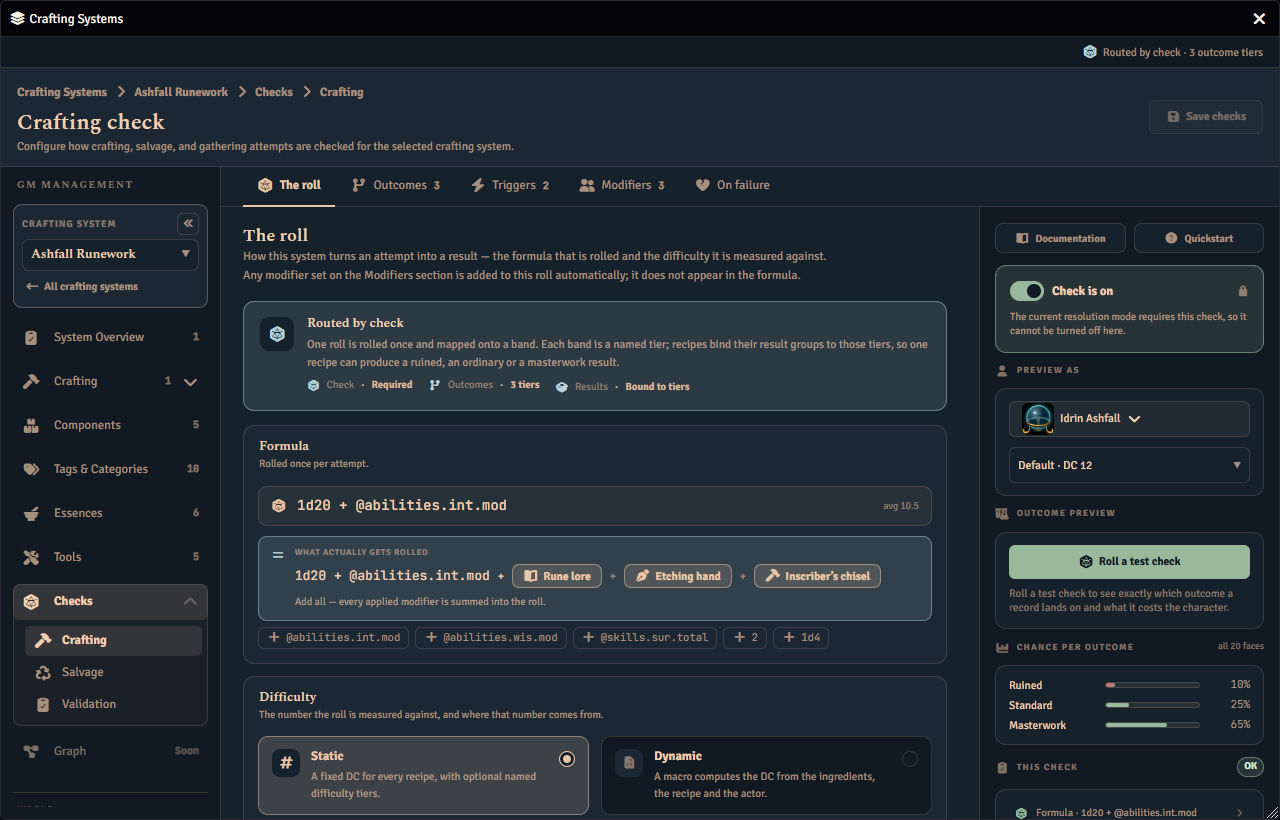
A success-counting check is charted differently, because there is no single formula total to build a histogram from. The panel still charts it by outcome, showing each outcome’s percentage and the expected number of successes, labelled “exact” or, once the dice explode often enough to leave a very small chance unaccounted for, “nearly exact”. When cancelling is part of the check, the panel breaks a below-zero result out as its own Botch row whenever every below-zero result on that check fails. If an authored outcome lets a below-zero result still succeed, there is no separate Botch row, and that result stays counted in its own outcome.
The Outcome preview panel rolls a real test check and announces the whole result together. A medallion at the top carries the net successes, captioned “net”, above a breakdown line reading the qualifying and cancelling dice and the character rolled for, for example “3 qualified − 1 cancelled = 2 net · Sera Vane”. Beside the net sits a line stating how many successes the check needs and the margin by which the roll cleared or missed that, for example “needs 2 · margin +1”. Under that sit the dice themselves, one tile per die, marked qualified, cancelled, or exploded with its own glyph, over a legend that repeats each of those glyphs beside its word: qualified, cancelled, exploded. A card below states the outcome, tinted for success or failure, titled “Success”, “Failure”, the outcome tier’s name, or, only when the net fell below zero and the roll still failed, “Botch”, each naming what it does. Most results carry a note under the card explaining that the margin is shown so that higher is always better, counting successes over what was needed. A trigger that forced or rerouted the result explains that in the note instead, and an unrescued botch shows no note at all. A pool reduced to zero rolls no tiles: the medallion reads “0”, the breakdown reads “pool reduced to 0”, the line still states how many successes were needed and that the roll missed by that whole amount, and the note explains that the pool was reduced to zero so the check fails automatically. A What happens list closes the readout, naming what the result produces or withholds, and whether it breaks the required Tools.
Warnings you may see on Validation
The Validation page reports a success-counting check’s own set of issues, each with its own title over the sentence explaining it:
- The base pool cannot be worked out or The success threshold cannot be worked out: the pool or the threshold uses dice, or cannot be read as arithmetic.
- A face is not on the die: an explode or cancel face is higher than the die can roll.
- The dice would explode forever: every face on the die explodes, so the roll could never stop.
- A face to explode or cancel from is not chosen: From a face is picked for Explode or Cancel with no face set on its stepper, so the check cannot roll until you choose one. This is a blocking issue.
- A recipe tier sets no successes needed: a recipe tier with no successes needed of its own falls back to the check’s own number and is no harder than the default. This is a blocking issue: set successes needed on every tier before enabling the system.
- Successes needed above the most dice that can be rolled: the check asks for more successes than the dice it allows could ever produce, even once exploding and every added die are counted. This is a blocking issue.
- Successes needed above the base pool: the check asks for more successes than the base pool alone has, though exploding or an added die could still reach it.
- The base pool is too large to roll: the pool is larger than the 999 dice Foundry can roll in one go, so the check cannot roll at all. While this is raised, the two issues above are not evaluated.
- This formula counts successes, but the check adds the dice: see Converting a free-text formula that counts successes.
- A trigger reads dice the pool never rolls: a trigger built for a formula this check no longer rolls is kept, but cannot fire while the check counts successes, and fires again if you switch back to Add the dice.
With a Preview as character chosen, the same panel may also warn that the character is missing a value the check reads, or that the value it read is not a number. Both warnings name the character and disappear the moment you choose one that has what the check needs.
See Also
- Crafting Systems. Configure resolution mode, feature toggles, and system-level settings.
- Salvage. Configure salvage checks, which use a separate check to gate salvage outcomes.
- Recipes. Understand the Routed by check and Progressive resolution modes that require a crafting check.