World Currency
Under the Actor data path spend strategy each unit names a field on the actor. That path is not a roll expression and cannot roll. See Expressions.
Currency is a world setting, not a per-system one. A world runs a single game system, so there is exactly one way its actors store coins, and every crafting system that opts in shares the same currency units. GMs author it in World > Rules & Resources > Currency, in the manager rail. Rules & Resources groups the three libraries that belong to the world rather than to any one crafting system: the currency units, the character prerequisites and the modifiers.
Only GMs can see and manage World > Rules & Resources.
Currency is always available, even before any crafting system enables currency. This lets you set up the coins first and switch systems on afterward. The page subtitle tells you how many coins you have defined, and how many of your crafting systems currently use them.
Turning currency on for a system
The currency units configured here only matter to a crafting system once that system’s own Currency toggle is switched on. That toggle lives in the Optional features section of the system’s System Settings tab, and it decides only whether the system participates. See Currency Requirements for what participation enables on a recipe.
Choosing a spend strategy
The Spend strategy selector decides how Fabricate reads and spends an actor’s money. It offers three strategies, and you can pick any of them regardless of your world’s game system. A short hint under the selector describes the strategy you have chosen.
- Actor data path reads each currency unit from a numeric field on the actor sheet, such as a Dungeons & Dragons 5e character’s gold. Fabricate makes its own change across the denominations you define, so a cost priced in silver can be paid from gold and the difference returned in smaller coins.
- Actor inventory treats coins as items the actor carries, read and spent through a preconfigured provider. This is the right choice for game systems such as Pathfinder 2e, where coins live in the inventory rather than in a single sheet field.
- Macro drives currency with macros you write, for any game system. The macro receives the actor and does whatever it needs, so this strategy is not tied to the inventory.
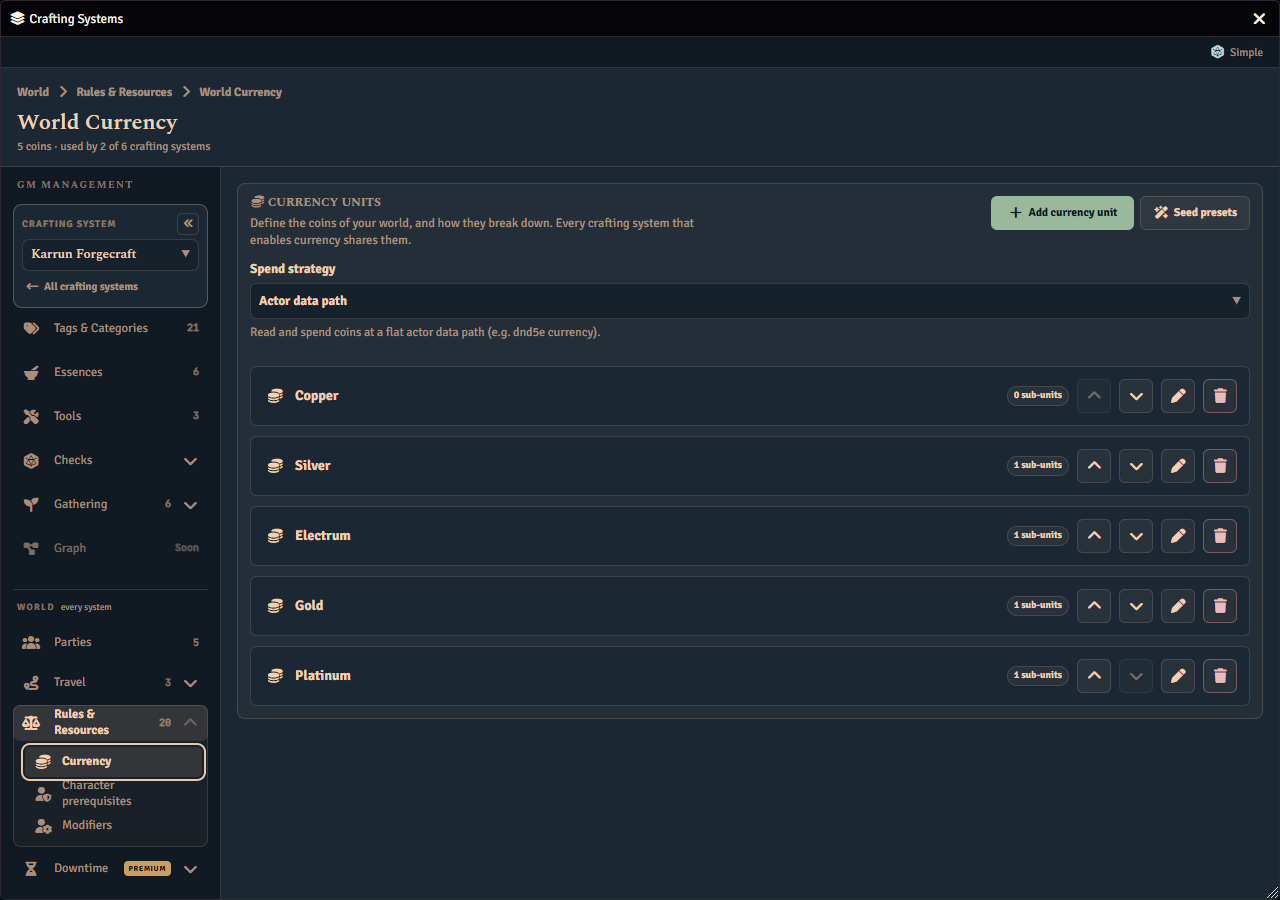
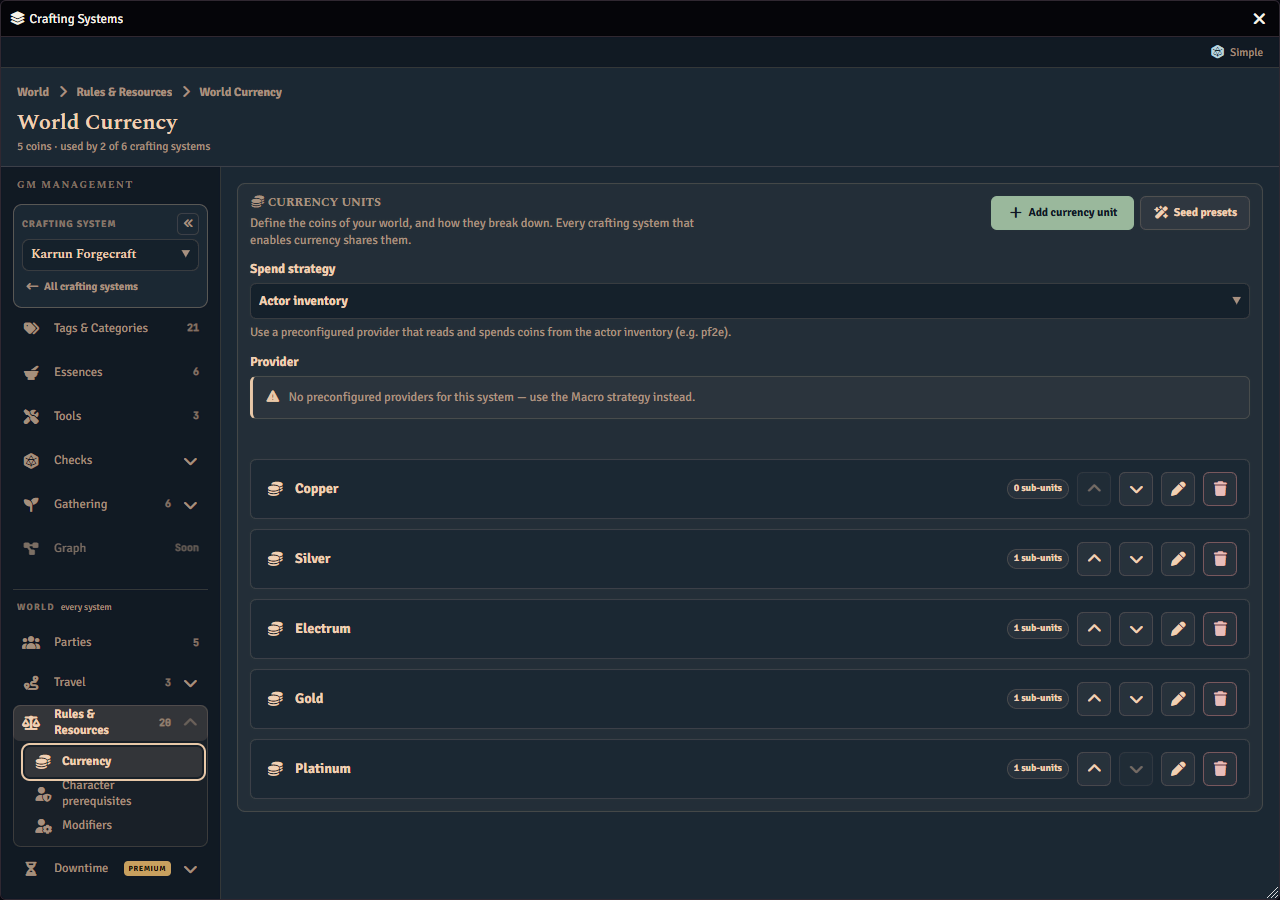
The provider (Actor inventory)
When you choose Actor inventory, a Provider selector appears.
A provider is a built-in adapter that already knows how to read and spend coins from your game system’s inventory. Pathfinder 2e ships with one. When a provider is selected, it manages the denominations for you, so the unit list becomes a read-only Provider-managed denominations list. You can still reference those denominations by their abbreviation in a currency cost, but you cannot edit them here. In a world whose game system has no provider, Fabricate shows a note steering you to the Macro strategy instead, and leaves your own units untouched.
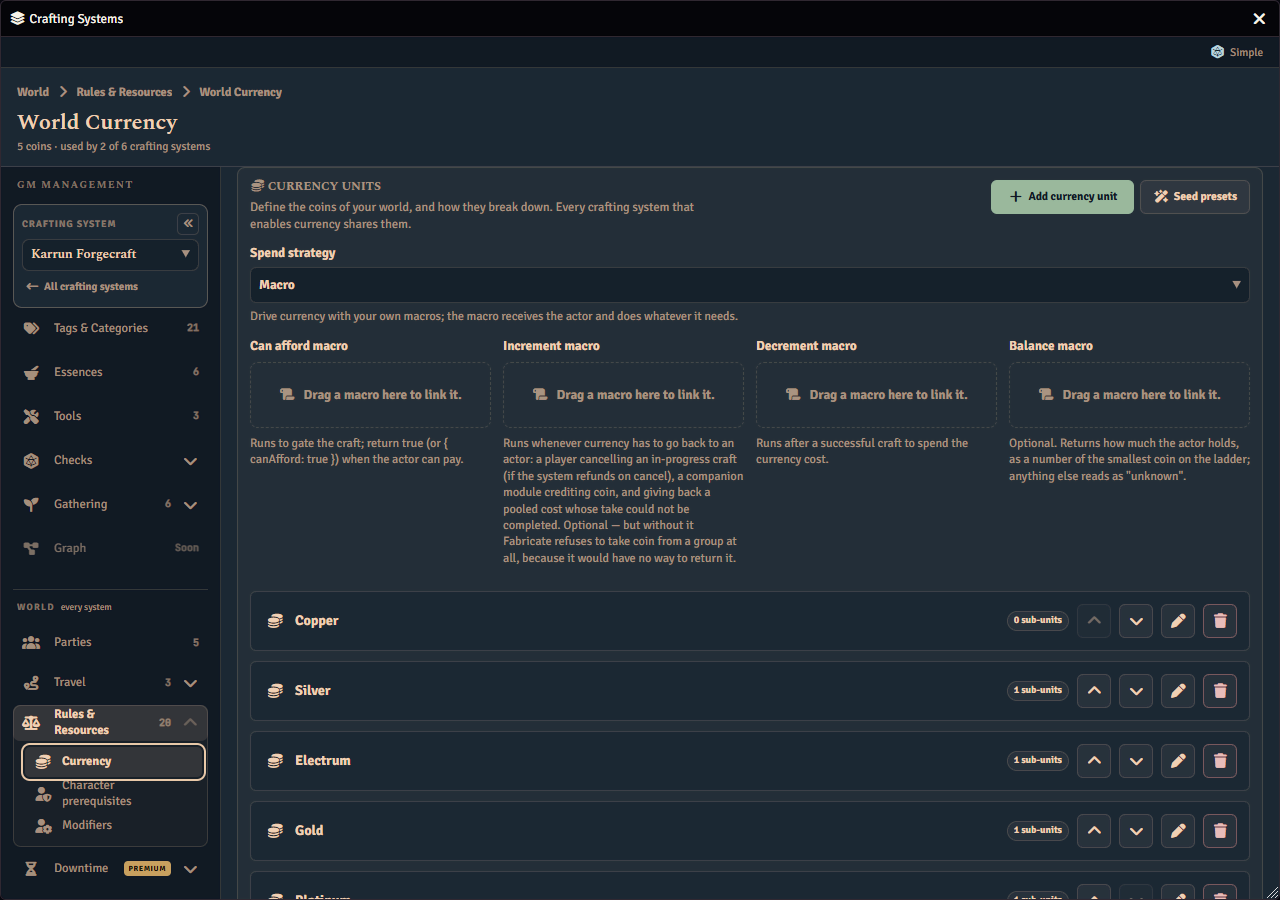
The currency macros (Macro)
The Macro strategy has four drop zones. You link each macro by dragging it from the Foundry macro directory onto a drop zone, and right-click a linked macro to unlink it.
- Can afford macro runs before the craft to decide whether the actor can pay. Return a success result to allow the craft, or a failure result to block it.
- Increment macro runs whenever coin has to go back to an actor. That covers a player cancelling an in-progress craft when the system refunds on cancel, a companion module crediting coin, and returning a pooled cost that could not be taken in full. It is optional, but without it Fabricate declines to take coin from a group at all, because it would have no way to give it back.
- Decrement macro runs after a successful craft to spend the cost.
- Balance macro is optional and reports how much the actor holds, counted in the smallest coin on your ladder. Anything it returns that is not a number reads as unknown.
Each macro receives the currency cost, keyed by the abbreviation you gave each currency unit, so your macro can match coins by the same abbreviation you configured. If a macro reports failure or stops with an error during a craft, Fabricate stops the craft before any ingredients are consumed.
Which question your macro is being asked
Your Can afford macro answers two different questions, and the context it receives says which one.
- During a craft,
calleris"craft", and the context also carries therecipeand thecraftingSystembeing crafted from. - When another module asks whether a character can afford a cost outside a craft — a companion settling a downtime activity, say —
calleris"award", and bothrecipeandcraftingSystemarenull, because that question has no recipe and belongs to no crafting system.
Check caller before you read anything craft-specific. A macro that reads the recipe’s name without checking stops with an error on an award question, and Fabricate then reports that the question could not be answered rather than reporting a well-funded character as unable to pay. That is the honest outcome, but a macro that guards on caller gives a real answer instead.
Every context Fabricate builds carries caller; today only the Can afford macro is ever asked the award question.
Defining currency units
When you use the Actor data path or Macro strategy, you define your own currency units. Each unit has a label, an optional abbreviation, and an icon. The abbreviation is the short form shown on a currency cost. When you leave it blank, the cost shows the unit’s full label instead.
- Under Actor data path, each unit also names the field on the actor sheet that holds its balance.
- Under Macro, units have no path or denomination. Your macros match coins by abbreviation, so every unit must have one. Fabricate reports a configuration error if a unit is missing its abbreviation, and a note reminds you that conversion between units is handled by your macros.
You can also describe how units break down into smaller ones, such as one gold breaking down into ten silver. A unit with no breakdown is treated as a base denomination.
To get started quickly, use Seed presets to add the standard set of currency units for your world. Seeding in a Dungeons & Dragons 5e world adds units on the actor data path strategy. Seeding in a Pathfinder 2e world adds inventory units and selects the Pathfinder 2e provider. Preset seeding is only available in Dungeons & Dragons 5e or Pathfinder 2e worlds.
Checking your currency setup
As you edit your currency units, Fabricate checks whether crafting could actually spend against the setup you have built, and shows you what it finds right on this page.
When something is wrong, a note titled Currency can’t be spent yet lists each problem by the unit it names. Fix what it lists and the note clears. Saving still works while the note is showing. Fabricate never refuses to save partway through, because reaching a working setup often takes several small edits.
The note stays hidden until you have defined at least one currency unit. It can reappear the moment you switch spend strategy, if the new strategy needs something your existing units do not provide yet.
This check cannot catch every mistake. If a unit’s actor data path points at the wrong field, one that exists on the character sheet but does not hold the balance you meant, Fabricate has no way to tell the field is wrong just by looking at it. Crafting still fails for any actor using that field, but only for that actor, so a player reporting they cannot pay for something you believe they can afford is telling you to check that unit’s actor data path.
What players see when a cost can’t be priced
If a player tries to craft something with a currency cost before your setup is ready, Fabricate does not tell them they are short on coin. Instead, it tells them the currency setup is incomplete and that a GM needs to finish it in World > Rules & Resources > Currency. The crafting window shows the same message next to the affected cost before they even attempt the craft, so a player reporting this to you is describing your setup, not their purse.
Upgrading from an earlier version of Fabricate
Earlier versions of Fabricate configured currency separately on each crafting system. The first time an upgraded world loads, Fabricate combines every system’s coins into the single set of currency units shown here automatically, keeping the spend strategy, provider, and macros from the first system that had currency switched on. If two systems had defined the very same coin, only one definition is kept, but every recipe and salvage cost that referenced it keeps working. Each system keeps its own Currency toggle exactly as you had it.
Moving currency between worlds
Exporting a crafting system carries the world’s coins, spend strategy, provider, and macros along with it. Importing into a world that has no coins of its own adopts all of it. Importing into a world that already has coins only adds any coin it does not already have, so an existing coin is never replaced or renamed. See Import & Export for the rest of what an export carries.