Gathering Environments
An environment is a place actors can gather in. It carries its own fields and conditions, and it composes reusable tasks and events out of the system’s libraries.
Environment Fields
The Gathering menu opens on a browser of every environment the selected system holds.
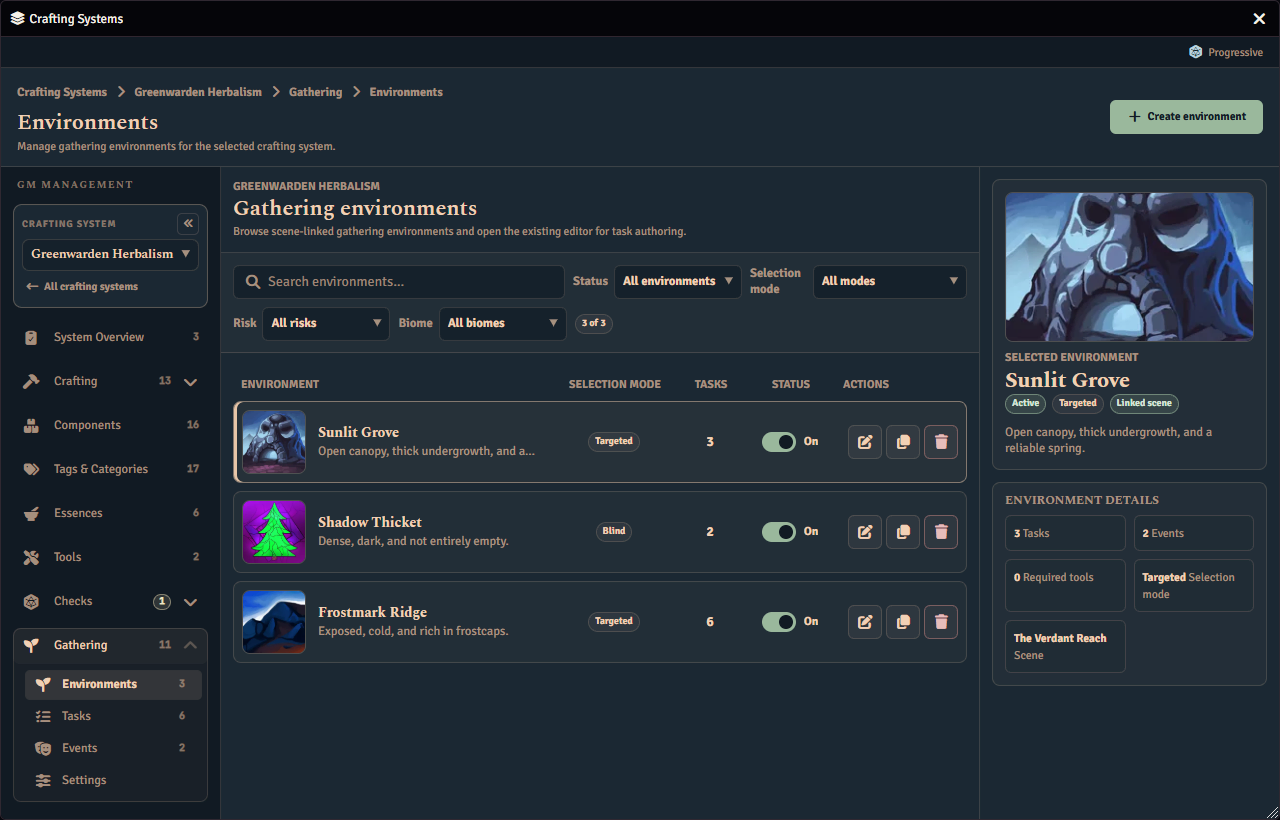
Each environment belongs to one crafting system and stores:
| Field | Description |
|---|---|
| Name | The environment name players and GMs see |
| Description | Optional notes shown while authoring |
| Enabled | Disabled environments are hidden from normal player listing |
| Selection Mode | Targeted shows visible task rows, or Blind shows one generic opaque action resolved from one or more hidden tasks |
| Biomes | Optional biome tags used to match Gathering Tasks and events |
| Danger Level | Optional single danger ceiling used to match reusable events |
| Scene | Optional scene gate for environments tied to a specific scene, linked from the Linked scene card on the Overview tab |
Biomes and Danger Level above are the composition match tags. They decide which reusable tasks and events belong to the environment, not where players can gather. Geography is no longer a composition tag. Instead, an environment declares membership in one or more realms through the editor’s multi-realm selector when the per-system Enable Travel & Realms toggle is on. Realm membership and the optional include/exclude rules for realms and biomes drive location-aware availability only. See Gathering Realms & Travel.
If a saved scene reference no longer points at a scene in your world, the Linked scene card reads Scene not found, keeps the reference and preserves it on save until the GM unlinks or replaces it. Players remain blocked by an unresolved scene gate until the reference is repaired.
Deleting an environment also clears active and past gathering runs that reference it.
The scene link is a Linked scene card at the foot of the Overview tab. Drop a Scene onto the card, from the sidebar or from a compendium, to link it. Use the visible Unlink button to remove the link. The card shows the scene’s thumbnail and name.
Global Conditions And Tags
Gathering weather and time of day are global gathering conditions, not environment browse filters. GMs can set the current weather and current time of day in the gathering settings panel. Only a GM can change them, and the value must be one of the weather or time-of-day options the system has configured. Setting a condition also updates every system that offers that option. A system whose options do not include it keeps its own current value, and the listing and the gate both use that system’s value. Changing a condition refreshes the gathering listings for everyone. Players cannot change conditions.
The time-of-day bar
In the Times of day panel, a bar draws one calendar day split into your times of day. Each time of day has a Starts at stepper, set in whole hours. A new time of day starts at the middle of the longest existing one until you change it. The defaults are dawn at 04:00, day at 08:00, dusk at 17:00 and night at 21:00. A time of day lasts until the next one starts, and the last one runs round to the first. The length of the day, and so the number of hours the bar offers, comes from the world calendar. Without a calendar reading the bar assumes a 24-hour day. Drag a divider on the bar to move a start hour, or use the stepper.
A line on the bar marks the world clock, read out as hours and minutes to assistive tools. The line moves as world time advances.
A dot marks the current time of day. You set it by hand, either by dragging it to another time of day or with the Current time of day menu below the bar. Start hours place each time of day on the bar, but they never change the current time of day. The dot can therefore sit away from the line when the clock is in a different time of day.
Under the bar, a + button sits inside each time of day that is wide enough to split. Pressing it fills the add form with a start hour in the middle of that time of day. It creates nothing until you finish adding the value.
If two times of day share a start hour, or a start hour falls outside the day, the bar cannot be drawn. The panel shows a note naming the times of day to fix instead. Give each time of day its own start hour within the day and the bar returns. Assistive tools announce that note when it appears.
When gathering is enabled and you have not set up your own values, Fabricate provides default lists for biomes, danger, weather, and time of day. There is no region list any more. Geography is now authored as a realm under World > Travel > Realms (see Gathering Realms & Travel). Leaving a task or event match tag empty means it matches any value for that dimension.
Composition
Every environment has a composition mode (Overview → Composition mode card) that decides which reusable library tasks and events apply:
- Automatic means every matching, library-enabled record is available unless you explicitly exclude it, and you can Force add a non-matching record from the Non-matching section to compose it anyway.
- Manual means only records you explicitly include apply, whether or not they match this environment’s biomes and danger. A hand-picked list is not filtered, so manual mode has no Force add and no Exclude: you add a record or you remove it. On both the Tasks and Events tabs, manual mode shows Included in this environment and Available to add only. Available to add lists matching records first, then non-matching and library-disabled records. Matching and non-matching enabled rows both use Add, and library-disabled rows show an “enable in library first” note. Removing an included manual record returns it to Available to add as a normal matching, non-matching, or library-disabled entry. It does not create a local Excluded state.
Automatic composition can be fully library-backed. An automatic environment does not need a placeholder task when matching library Gathering Tasks provide the gatherable records.
In automatic mode, Excluded and Non-matching are separate sections. Non-matching lists the records this environment’s biome and danger filter rejected, and each enabled row offers Force add to compose it in spite of the filter; library-disabled rows offer an “enable in library first” note instead, because a record disabled in the library composes nowhere and no force can override that. A record you both force-add and exclude stays out: excluding wins. Manual mode cannot create a force list — it has no Force add — and the upgrade that moved Force add into automatic mode cleared any force list an older version had left behind, so switching a manual environment to automatic does not conjure force-added records out of nothing. One case is worth knowing: if you force-add in automatic mode, switch that environment to manual, and later switch it back, the force list is still there and those records become available again. Switching modes does not clear your lists — that is what lets you switch back and forth without losing your work — so check the Non-matching list after switching if you are not sure what an environment carries. Automatic mode still honors records you explicitly excluded.
Every composition row, whether included, available to add, excluded or not matching, has a disclosure chevron. It opens that row’s overrides in place:
- the node count, as a stepper shown as “/ max”
- the Apply drop-rate adjustments switch
- the per-component Drop-rate adjustment (-100% to +100%) inputs, each with a Clear button
Only one row is open at a time, and opening a row selects it.
The right-hand inspector for an environment is read-only. For a selected record it shows the hero, a read-only node count and the evidence, with no step buttons, drop-rate switch, drop-rate inputs or Clear buttons. For the environment itself it shows the linked scene’s thumbnail and name as an Open scene link. You cannot drop to replace or unlink the scene from the inspector; use the Linked scene card on the Overview tab.
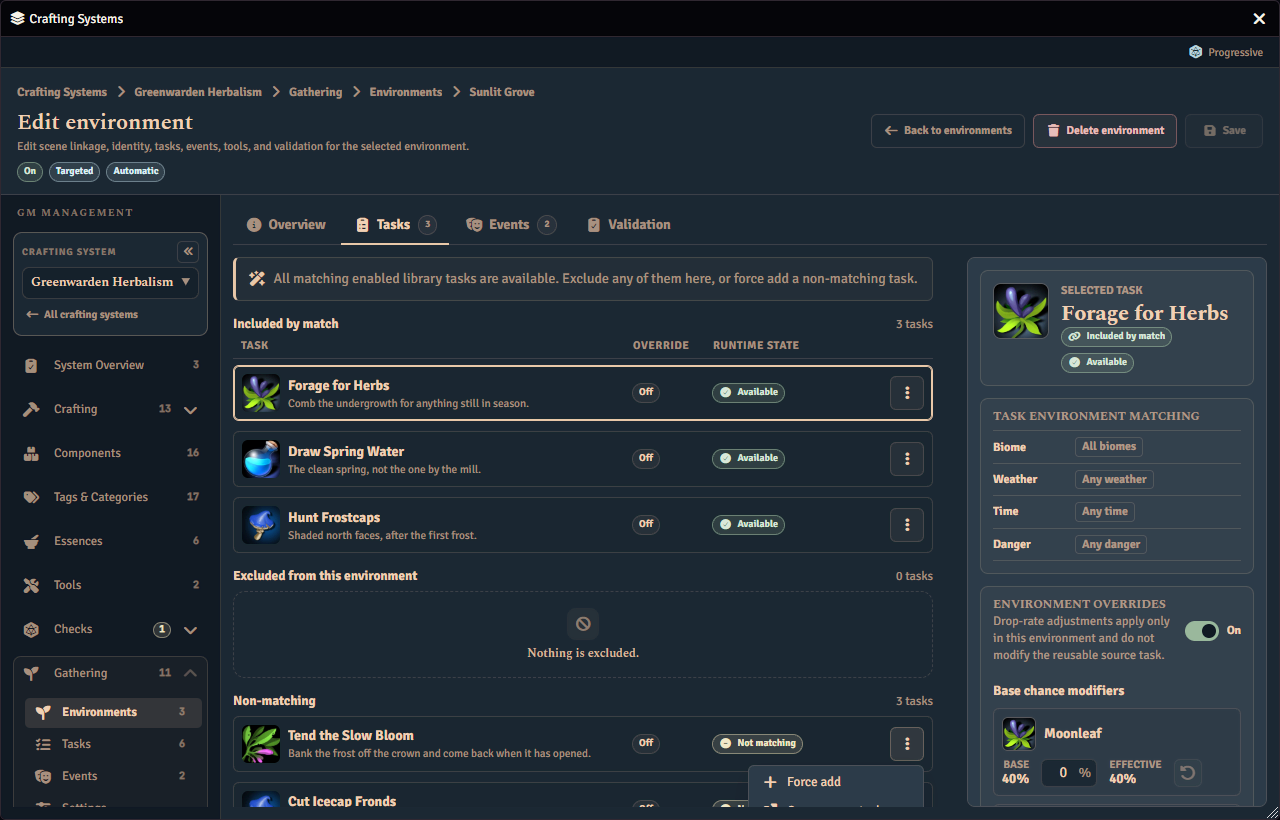
Weather and time-of-day are runtime gates, not matching criteria. A task or event whose required weather or time of day is not currently satisfied still matches the environment (by biome, plus danger for events) and stays in the Included section, but it carries a Conditions blocked pill and a hint listing the required values (“Available when: storm, dawn”). In the player app the task is visible but not attemptable, marked Conditions blocked, and a blocked event is skipped during event selection. Changing the current gathering conditions to one of the required values flips the row back to available.
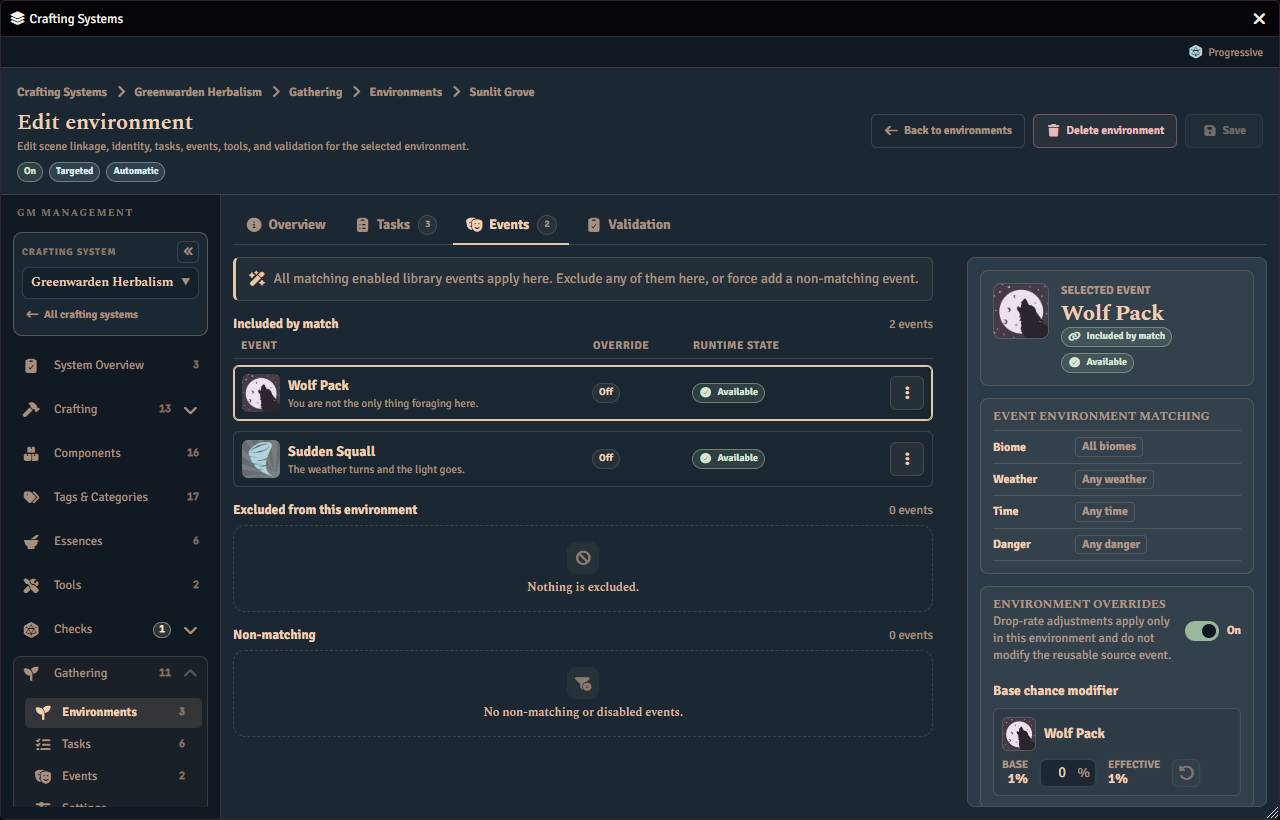
When the system’s Events rule under Gathering Rules is set to Highest ranked triggered event, the Events tab’s included list becomes an ordered list. Each row gains a drag handle and up and down buttons beside it. Drag a row’s handle, or focus it and use the arrow keys, to move that event. Moving a row announces its new position, so a keyboard or screen reader user can follow the change. The order those rows are in is the rank Gathering Rules uses when more than one matched event succeeds on the same attempt.
Save Validation
Saving on the Environments tab is blocked while there are problems. When something is invalid, Fabricate does not save, does not discard your draft, and keeps your in-progress edits so you can fix them.
Errors are shown in two places:
- A summary at the top of the editor lists every issue that blocks saving.
- Each error is also shown inline next to the matching field or list.
When a failed save has an error tied to a field, the editor jumps to and focuses the first invalid one. Summary entries that point at a field are clickable and jump back to it.
Some errors point at a whole list rather than a single field, such as the result sets, a specific result set’s name, a result set’s results, or an individual result row.
Disabled tasks skip the progressive completeness checks, so a placeholder task can be saved while a GM is still authoring it. Enabled tasks must be fully configured:
- A routed task needs the system to have a gathering check formula configured.
- A progressive task needs an award mode and a check formula. The threshold is optional.
A custom failure outcome is validated whether or not the task is enabled.
Unsaved Draft Confirmation
When a GM has unsaved environment draft changes, Fabricate asks for discard confirmation before actions that would replace, reload, or abandon that draft:
- leaving the Environments tab
- switching crafting systems
- selecting another environment
- creating a new environment draft
- duplicating an existing environment into a new draft
- disabling the crafting system’s Gathering feature
- closing the Crafting Admin app
Choosing Keep Editing cancels the action and leaves your draft and your unsaved changes intact. Choosing Discard Changes lets the action continue.
Deleting a saved environment has its own delete confirmation and does not ask the discard question first. A brand-new unsaved draft has nothing to delete, so deleting one uses the discard confirmation instead and then returns you to the nearest saved environment.
If you trigger several of these actions while the discard prompt is already open, they all wait on that single prompt rather than stacking up duplicate dialogs.