Crafting Systems
A crafting system is a self-contained configuration that groups together environments, components, essences, recipes, and rules. You can have multiple crafting systems in a single world. For example, “Alchemy”, “Blacksmithing”, and “Enchanting” could each be their own system with different recipes and rules.
This page covers creating a system and the settings that live on the system itself. Three more pages sit beneath it:
| Page | What it holds |
|---|---|
| System Overview | Every open issue across the system, and what a blocker hides from players. |
| Startup & Preferences Cleanup | What Fabricate tidies away on load, and why. |
| Import & Export | Moving a whole system between worlds as JSON. |
Creating a System
Only GMs can create and manage crafting systems.
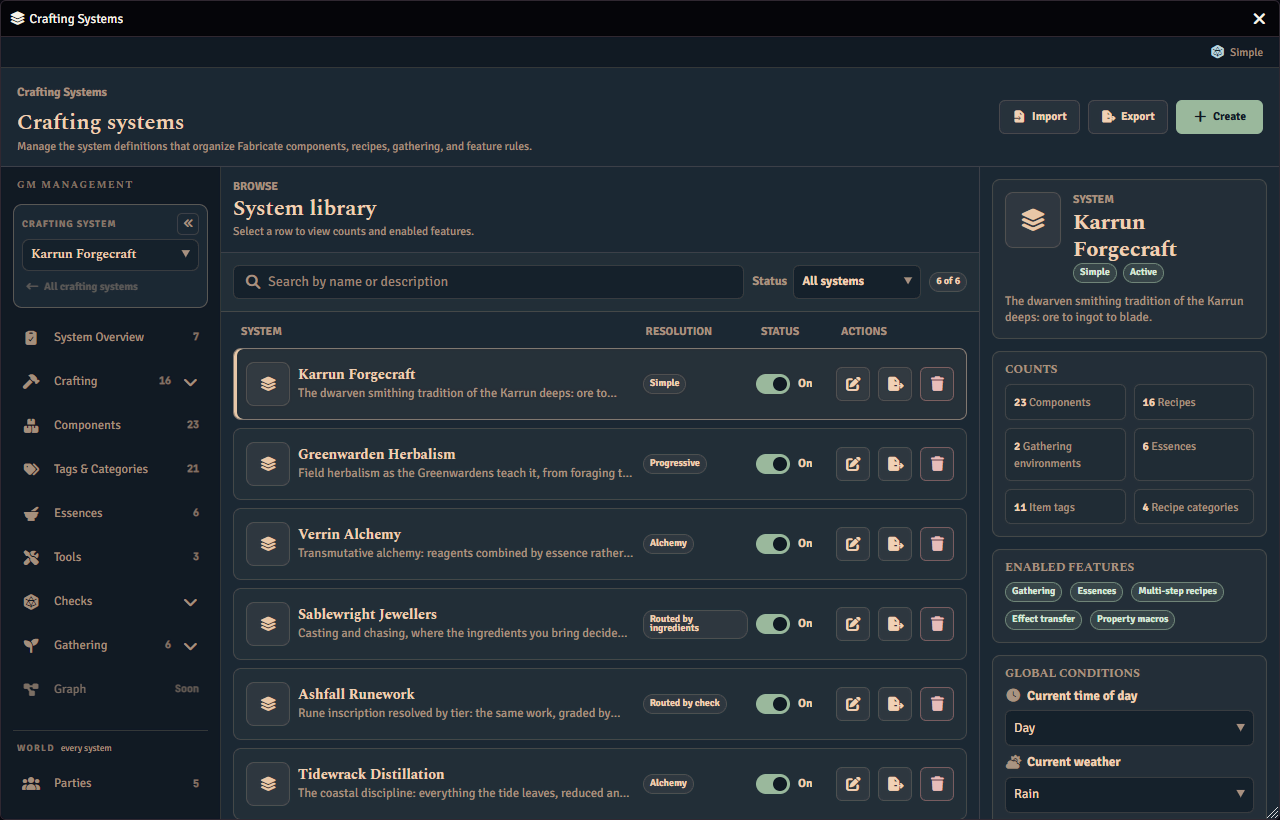
Open the GM admin panel (Manage Crafting Systems in the Items sidebar) and click Create System in the Systems tab.
System Settings
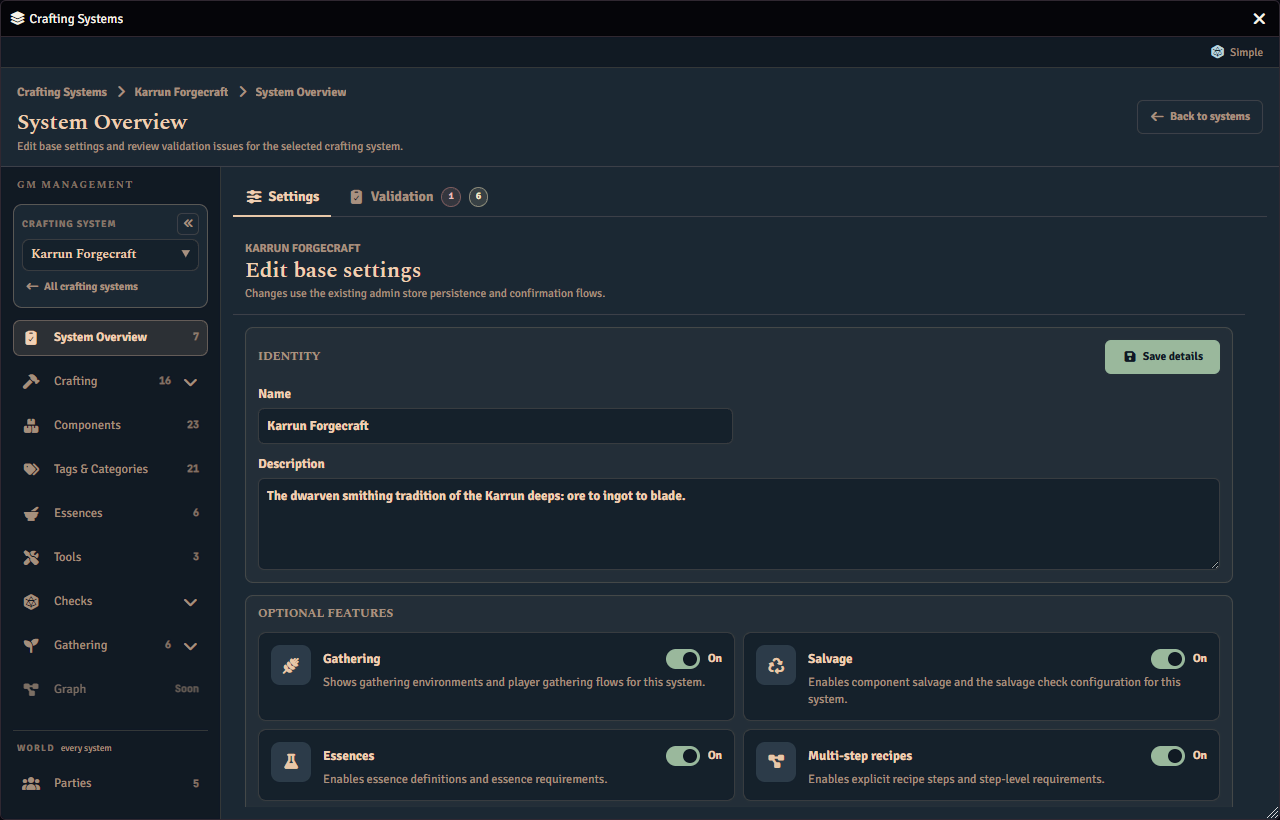
Open a system from the library to edit its base settings.
| Setting | Description |
|---|---|
| Name | Display name shown in the UI |
| Description | Optional flavour text |
The recipe and salvage resolution modes are not set on this screen. They live on the Settings page of the Crafting menu. See Resolution Modes and Salvage.
The Name and Description you type are held until you click Save details. An Unsaved chip appears beside that button while either field differs from what is stored, and it clears once the save goes through.
If you navigate away, or switch to another crafting system, while the Unsaved chip is showing, Fabricate asks what to do first. Save stores the pending name and description and then continues. Discard Changes puts both fields back to their stored values and then continues. Keep Editing cancels the move and leaves your typing intact. Moving between the tabs of the same system keeps what you typed and does not ask, because you have not left the form.
While you have unsaved details open, a change made to the same system somewhere else is not merged into the fields you are editing. Saving replaces it with your values, so finish or discard your edit before picking up someone else’s. The other cards on this screen, such as the feature toggles, apply as soon as you change them and are never part of this prompt.
Feature Toggles
Each system can independently enable or disable optional features. Most optional features are off by default and must be explicitly enabled by a GM.
| Feature | Default | Description |
|---|---|---|
| Salvage | On | Enable component salvage, its check configuration, and the player Salvage tab in the Inventory inspector. Turning it off preserves whatever salvage you have already authored |
| Essences | Off | Enable the essences system for abstract ingredient properties |
| Property macros | Off | Allow result items to have their properties set by a macro. With essences also enabled, each contributing essence can carry its own property macro too |
| Effect transfer | Off | Transfer active effects from essence source items to crafted results |
| Multi-step recipes | Off | Allow recipes with multiple sequential steps. Turning it off keeps any multi-step recipes you have authored and collapses each one into a single combined action that produces its final results, until you turn it back on |
| Gathering | Off | Show the Gathering group for authoring gathering environments, tasks, and events. Any enabled system also exposes the player Gathering action in the Items Directory |
Toggle optional features in the Features card on the System tab of the Crafting Admin panel. Each toggle takes effect immediately for all future crafting attempts in that system.
You set the recipe and salvage resolution modes on the Settings page of the Crafting menu, not on the main System settings page. The Crafting menu is always available for every crafting system. See The Crafting Menu.
Changing the recipe resolution mode migrates your recipes to the new mode wherever it can, instead of deleting them all. Fabricate reshapes each recipe so it fits the new mode, and only removes a recipe when its structure cannot be made to fit. You will be asked to confirm before anything changes.
The confirmation runs a dry run first and reports accurate counts: how many recipes will be migrated to the new mode and, only when some cannot be migrated, how many will be deleted and their names. When no recipe needs deleting, the confirmation does not mention deletion at all. When a recipe that is kept loses part of its shape, the confirmation names what is lost. It lists each ingredient set dropped when a recipe is collapsed into Alchemy mode, with the recipe it came from. It also lists each recipe that loses its failure result set when you move into Progressive mode. It mentions neither when nothing is lost.
A recipe is only deleted when its shape cannot fit the new mode. This happens in two cases: narrowing into Simple or Progressive mode (which each expect exactly one ingredient set and one result set) from a recipe that has more than one of either, and moving a multi-step recipe into Alchemy mode (which does not support multi-step recipes). A failure result set does not count toward that limit, so a recipe with one success set and one failure set is kept. Every other recipe is kept and adjusted to suit the new mode.
A missing setup at the system level never deletes a recipe. For example, switching to Progressive mode without a progressive crafting check, or to Routed by check mode without a roll formula, does not remove recipes. Those gaps are reported in the System Overview instead, and they hide recipes from players until you fix them rather than deleting anything. See System Overview.
When the new mode is Alchemy, a recipe that has more than one ingredient set is kept and collapsed to its first set, because an alchemy recipe has a single ingredient set. The system’s Alchemy check starts switched off, and you can turn it on and choose Simple or Tiered on the Checks screen afterwards. Fabricate also re-checks recipe ingredient signatures so any overlap that would make alchemy attempts ambiguous is surfaced rather than silently broken.
After the change, Fabricate shows a summary of how many recipes were migrated, and a separate warning listing any recipes it had to delete.
Changing the salvage resolution mode is not destructive to recipes or runs. No recipes or runs are deleted. Any component whose salvage setup is incompatible with the new mode simply has its salvage disabled, and can be re-enabled once it is reconfigured. You will be asked to confirm.
Switching a system into Simple mode is the one case that changes component setups. Simple mode awards a single result set, so any component that has more than one is trimmed back to its first when you switch. Fabricate warns you by name when this happens, listing every component it trimmed, so nothing is dropped silently.
The Salvage resolution mode card offers Simple (the default), Progressive, and Routed by check. A salvaged component has a single ingredient, so ingredient-set routing (and Alchemy) does not apply and is not offered. Simple returns one result set with an optional pass/fail salvage check.
Chat Output
Fabricate automatically posts a chat message to the table after every crafting or gathering action.
Success messages include:
- Crafter name (the actor who performed the craft)
- Recipe or gathering task name
- Items created, with quantities
- Ingredients consumed, with quantities
- Tools used (and any that broke)
Failure messages include:
- Crafter name
- Recipe or gathering task name
- Failure reason
- Any ingredients consumed or tools broken as part of the failure
Both success and failure messages show the rolled check total on its own row when a check ran. A guaranteed craft or salvage that needs no roll omits the row, because there is no total to report.
A crafted or salvaged item whose amount was rolled states its own roll beside it, in the same “Rolled 1d6 = 4” shape as the check total. Dice So Nice animates that roll along with the rest, the same way it animates the check. A roll that comes up zero or lower still gets its own row, naming the roll and stating that nothing was produced, rather than leaving the item off the list. A gathering result’s amount can also be rolled, but the gathering chat message does not state the roll. See Journal for where a gathered amount’s roll is recorded. You set a recipe result’s rolled amount on the Results tab of the recipe editor.
Chat messages appear as if spoken by the crafting actor.
When chat output does not fire. Chat messages are only posted for craft attempts that reach the engine’s resolution step. Early validation failures do not post a chat message, because the craft never started. These failures include a missing actor, missing ingredients, missing or unsatisfied tools, and invalid recipe configuration.
Interactive check rolls. When a player crafts or gathers from the UI, Fabricate also posts the check’s dice roll to chat so a dice-animation module like Dice So Nice can animate it. See Rolling a check from the UI for the prompt, the situational-modifier field, and which rolls do not prompt.
Crafting Checks
If your system uses Routed by check mode, or Progressive mode, you must configure a crafting check to gate outcomes on a player roll. See Crafting Checks for the settings, consumption-on-failure policies, and worked examples. If your game counts qualifying dice across a pool rather than adding one die to a modifier, see Success-counting checks.
Effect Transfer
When both the Essences and Effect transfer features are enabled, Fabricate can copy active effects from essence source items to crafted results. See Effect Transfer for how the feature is enabled, configured, and used, with worked examples.
Salvage
When the salvage feature is enabled, players can dismantle components to recover partial materials. Salvaging can also be used to harvest monster corpses and world resources for usable parts. See Salvage for resolution modes, salvage crafting checks, component configuration, and worked examples.
Gathering
When the gathering feature is enabled, GMs can author environments, tasks, and events for the system’s managed components. If at least one crafting system has gathering enabled, players see a separate Gathering action in the Items Directory that opens the player Gathering app. The action is removed again when no systems have gathering enabled. See Gathering for the GM editor fields, task authoring, and validation behaviour.
Recipe Visibility
Recipe visibility controls which players can see and access recipes in the player Crafting tab, backed by the visibility service. You configure this per crafting system in the Recipe Visibility card on the Settings page of the Crafting menu. The Crafting menu is always available for every crafting system. See The Crafting Menu.
Each system uses one of four visibility modes:
| Visibility mode | Description |
|---|---|
| Global (default) | All recipes visible to all users |
| Restricted | GM grants individual recipes to specific characters and players |
| Item | Players craft a recipe only while holding a book or scroll linked to it |
| Knowledge | Players learn a recipe from a book or scroll before they can craft it |
Selecting a mode applies at once and never rewrites your recipes. The mode you choose decides which extra surfaces appear in the Crafting menu, such as the Access section for Restricted mode or Books & Scrolls limits for Item and Knowledge modes.
For full details on each mode, recipe items, the learn flow, and configuration examples, see Crafting Settings.
Alchemy Mode
Alchemy mode is a special resolution mode where recipe names and ingredient lists are hidden from players. Macros and integrations can submit selected items to the alchemy engine. Fabricate matches the combination against known recipe signatures. Set the resolution mode of a system to Alchemy to enable this. See Alchemy Mode for current usage, the Alchemy check setting, signature matching, consume-on-fail, and learn-on-craft options.
Requirements
Systems can optionally require time for crafting, or opt into the world’s currency.
Time Requirements
Time requirements let a recipe require an amount of time to craft, given in minutes, hours, days, months, or years. A single-step recipe carries one duration on its Duration card. Each step of a multi-step recipe can carry its own duration. While a duration is running, the step is blocked until world time advances past the required duration.
Time gates are checked:
- When a player tries to advance a step
- Automatically when world time changes
- On module startup
Time requirements are on by default. You turn them on or off with the Time requirements toggle in the Optional features section of the system settings editor, next to the currency toggle.
Fabricate shows the duration editors on a recipe only while time requirements are enabled for the system. Turning them off later does not delete the durations you have already authored. The authored values stay visible as read-only values in GM authoring summaries, and a step no longer waits on time until you re-enable time requirements.
Currency Requirements
When you enable currency requirements, a recipe ingredient can offer a currency cost as an alternative to its items. A crafter who does not have the items can pay the cost from their own coins instead. Fabricate tries each ingredient’s item options first, and falls back to a currency cost only when no item option is satisfied. Before the craft begins, Fabricate checks whether the crafting actor can afford every currency cost the craft will use, then spends those costs after the item ingredients are consumed. If the actor cannot pay, the craft is stopped before anything is consumed and Fabricate reports that there is not enough currency. A craft can also stop because the world’s currency setup cannot price the cost at all, which is a different problem from the actor being short. See Checking your currency setup for what that looks like and how a GM fixes it.
The recipe browser’s inspector lists a currency cost under Requires as the amount followed by the coin’s abbreviation, or by its label when the coin has no abbreviation. If the world’s currency setup no longer has that coin, the inspector shows the coin’s stored identifier instead of leaving the cost blank.
Currency requirements are off by default. You turn them on or off with the Currency toggle in the Optional features section of the system settings editor, next to the time toggle. This toggle only decides whether the system participates. The currency units, the spend strategy, the provider, and the currency macros are all configured once for the whole world, not per system. See World Currency for how a GM authors them.
The recipe editor offers to add a currency cost only while currency is enabled for the system and the world has at least one currency unit defined. This keeps the editor from offering a cost the system cannot honour. Turning currency off later does not delete the costs you have already authored. Each one stays visible on its recipe, but becomes read-only and is marked Currency off, and it stays inactive until you re-enable currency.