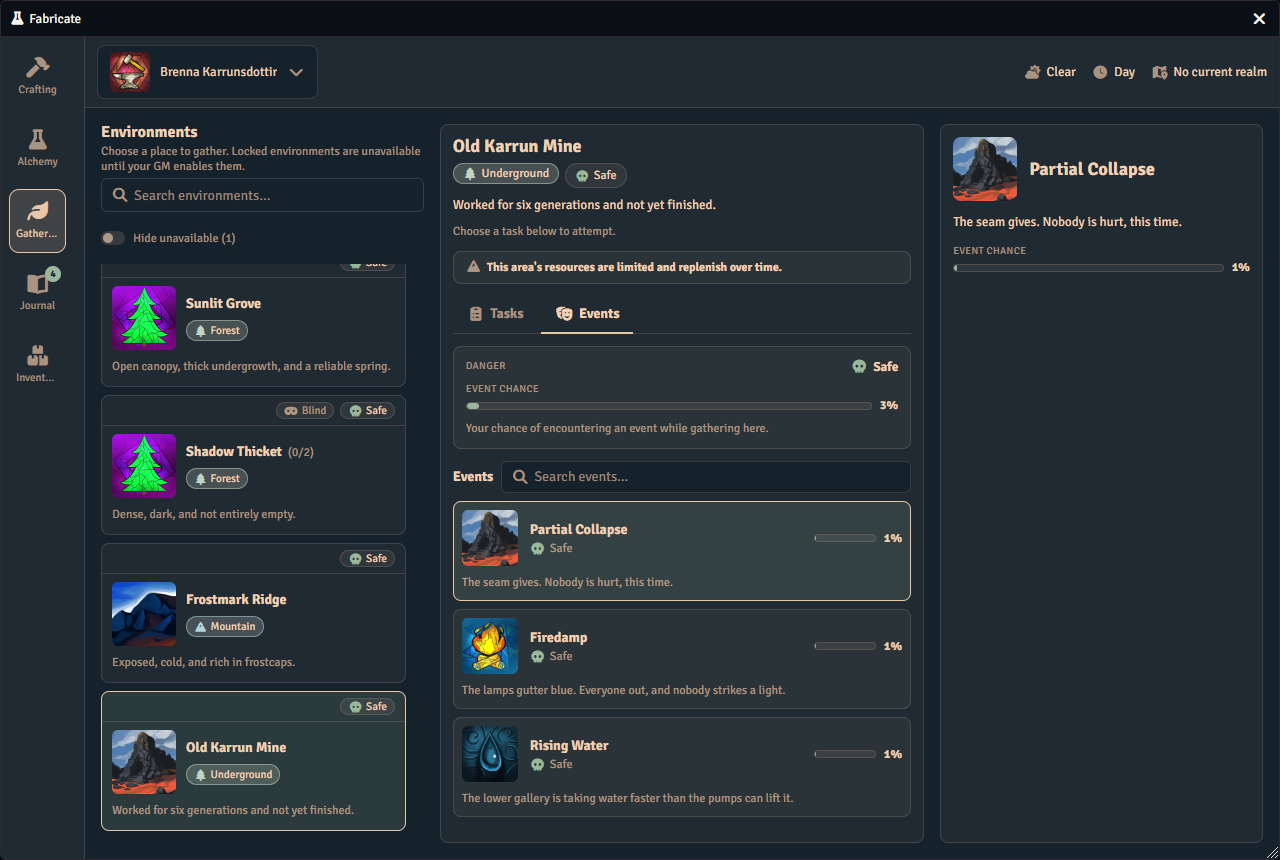
Player Gathering App
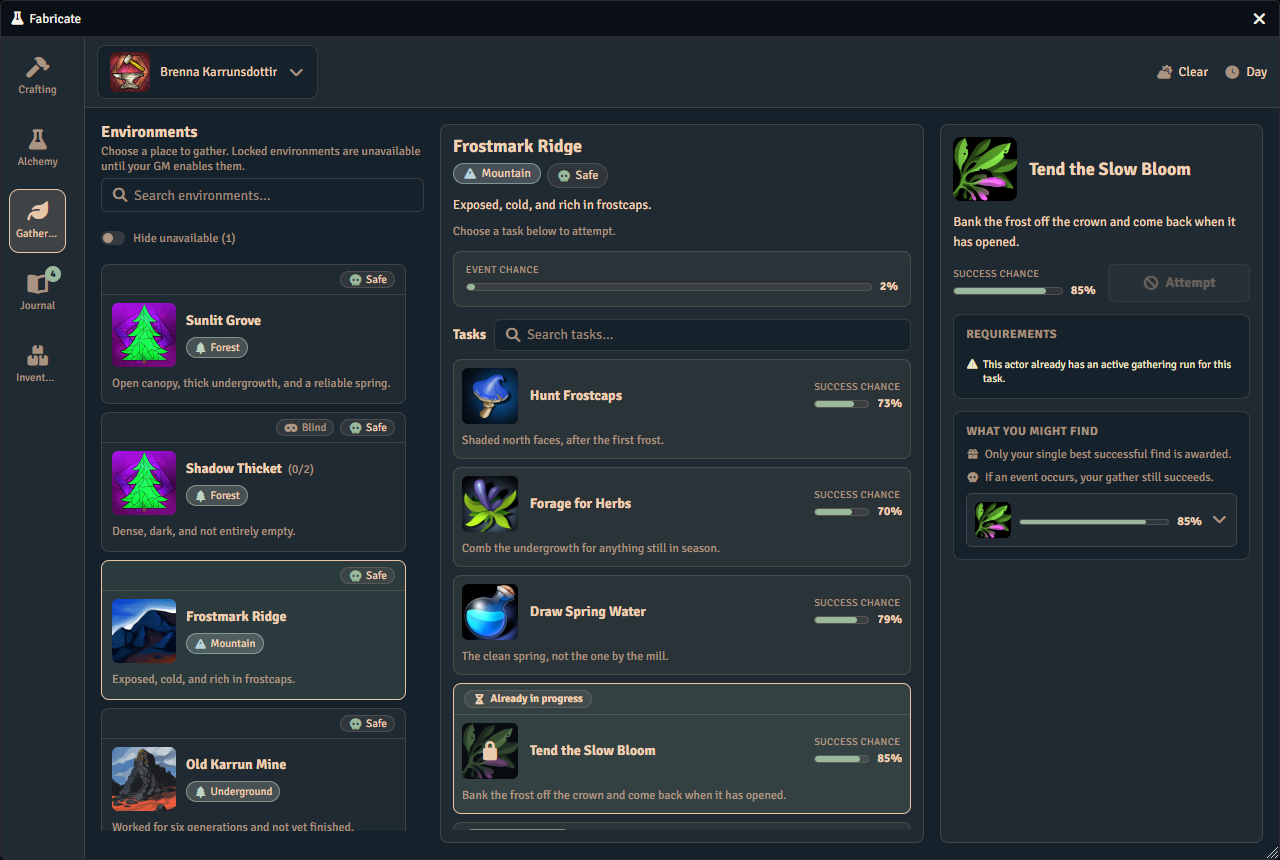
The player gathering experience opens from the Items Directory Gathering action and is presented as the Gathering tab of the unified Fabricate window.
Actor Selection Bar
A shared actor-selection bar sits above all of the window’s tabs. Its left side is a character portrait with a caret that opens a searchable popover listing the characters you can gather as. Type to filter the list by name, then pick a character to select it. The bar remembers your choice and reuses it the next time the window opens.
The bar lists your selectable player characters: the actors your game system treats as player characters, owned by you for players and all of them for GMs. This only limits the list you choose from. If your remembered character is missing from the list, the bar falls back to the first available player character and remembers that instead.
The bar’s right side carries gathering context. On the Gathering tab it shows the current weather and time of day (each an icon and label). On the Journal tab the header shows the read-only world clock using the world’s calendar formatting.
Environments Column
The player app’s left column lists environments as cards. Available environments (enabled, with at least one visible task) sort first and are selectable. Locked environments sort after them and are shown only as non-interactive teasers. A locked card is one your party cannot currently reach. That covers a disabled environment, and an environment in another realm or gated behind a scene the party is not on. It carries the environment identity (name, image, biome chips) and a visible lock indicator, but no tasks, weights, or composition internals leak through it.
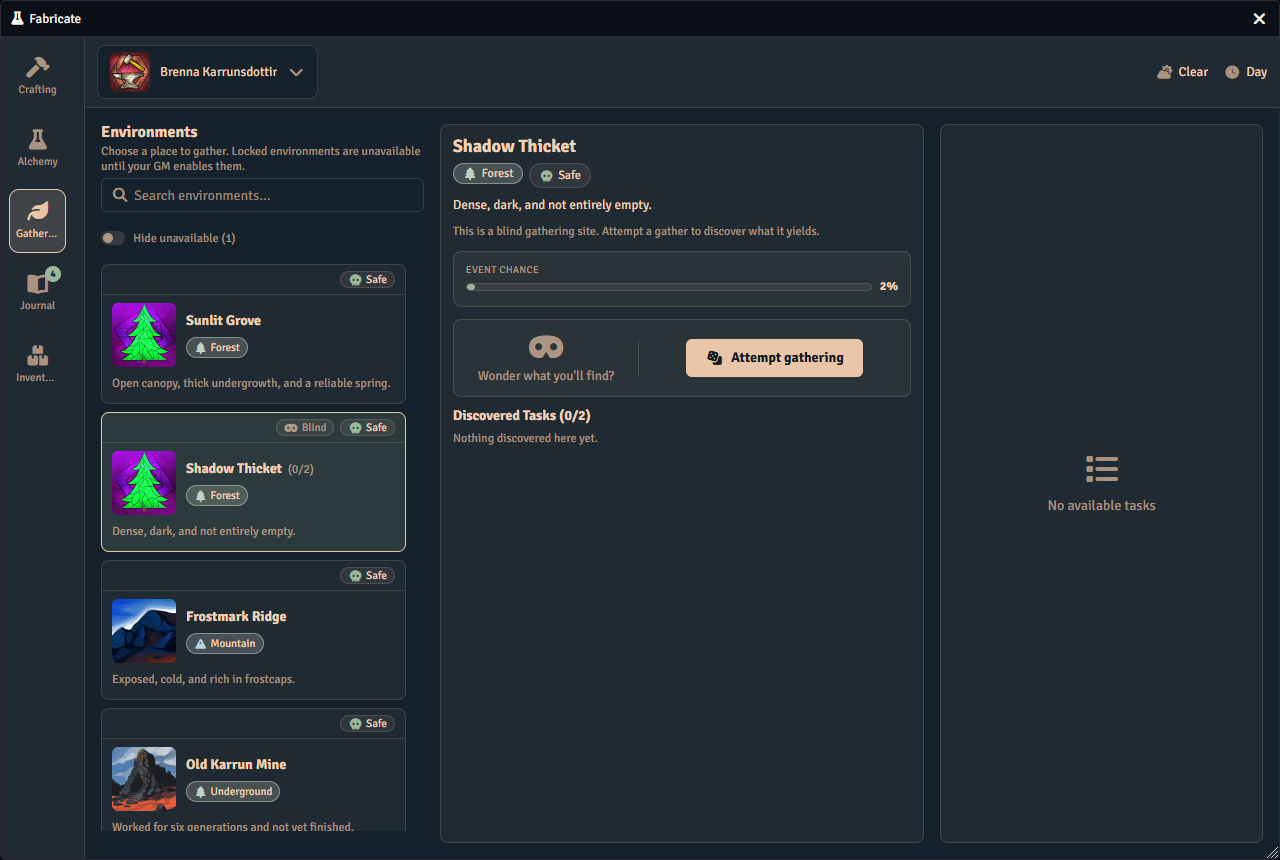
Blind environments show a blind chip. When the system reveals discovered tasks, a blind card also shows a discovered count (how many distinct tasks the selected character has revealed, out of the full pool they could discover). Locked cards and cards that never reveal show no discovered count. Biome chips on a card use the same labels, icons, and colours as the GM Environments editor.
Visible environments and tasks remain listed even when they are currently blocked. Scene-linked entries stay visible when the selected character is not on the linked scene or has no active token there, and the app shows the reason it is blocked. Active timed runs, last-attempt feedback, and recent history remain visible for the selected character even when browsing is empty or blocked.
Hide unavailable
Beneath the environment search field is a Hide unavailable toggle switch. Turn it on to tidy the column when locked teasers pile up. It hides only the environments your party cannot currently reach. That is the locked teasers: disabled environments, and environments in another realm or gated behind a scene you are not on. The toggle label shows how many environments are currently unavailable, for example Hide unavailable (3).
It does not hide environments you can still select whose individual tasks happen to be blocked. An in-realm environment where a task is short on stamina or missing a tool stays visible so you can open it and read why the task is blocked. It also leaves blind environments visible unless they are themselves locked.
The toggle starts off, so you see every environment until you opt in. It only changes what this device shows. It never changes saved data or anything the GM configured, and it does not affect what other players see. Fabricate remembers the choice for this browser or device, so reopening the app here keeps it on. Opening Fabricate on another device or in another browser starts from off again.
If turning it on hides every environment in the column, Fabricate shows an all unavailable environments hidden message with a Show unavailable button. Use that button to bring the hidden environments back. This is a different message from the no environments match your search one you get when a search term matches nothing.
Targeted task rows can show task names, descriptions, active-run timing, status, result counts, required-tool counts, and recent history. For non-GM users, blind rows and missing-environment history stay redacted: the app uses a generic label and does not expose hidden task names, result details, or tool details. GMs can see real blind task names through GM-facing surfaces.
Detail Column
Selecting an environment fills the center detail column. It opens with an environment header (the environment’s picture, its name, and info pips for any present biome and danger level), then a short description and a mode hint describing how that environment is gathered.
How the rest of the column reads depends on the selection mode:
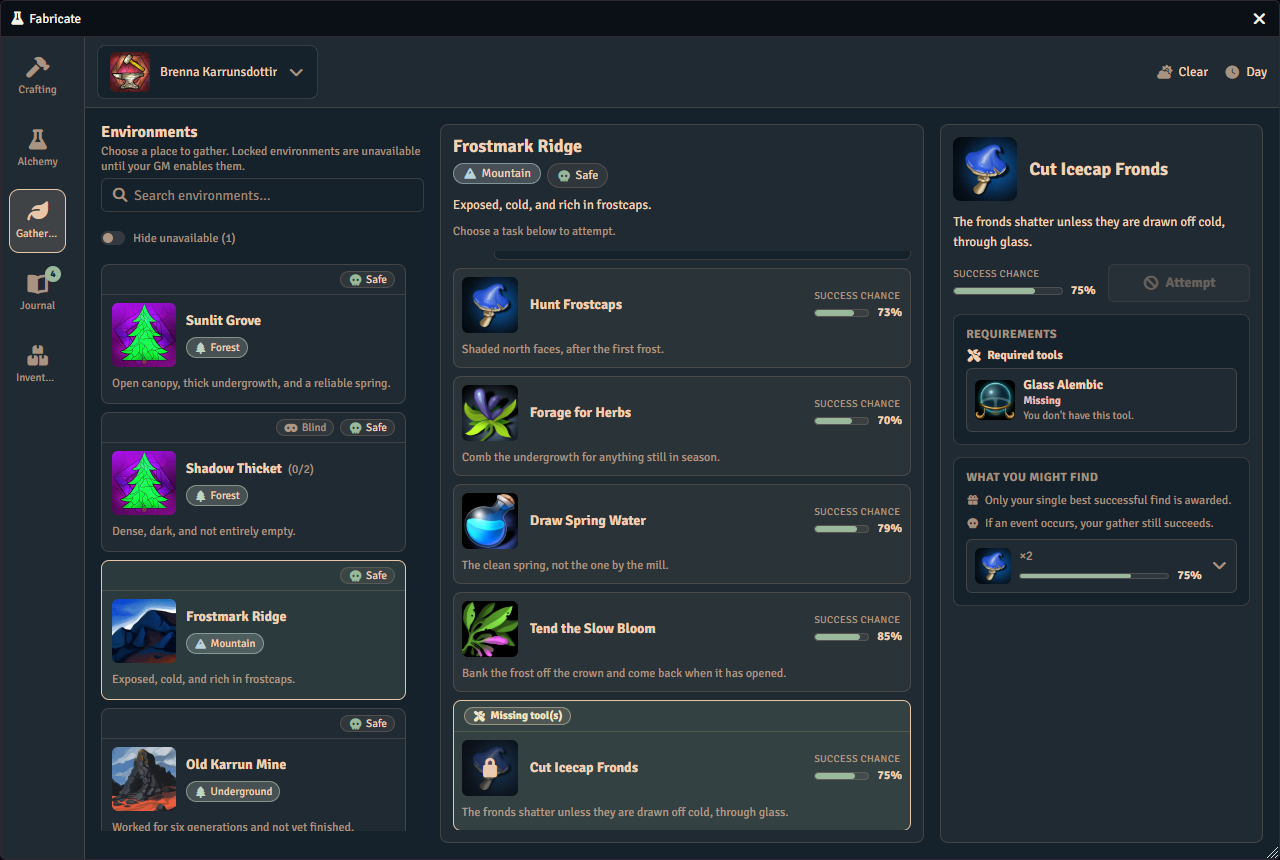
- Targeted environments show a list of task rows. Each row carries the task name, description, and a success-chance bar. Selecting a row opens the task in the right-hand column, whose header carries the task’s Attempt button. A task that is currently blocked stays visible but greyed, with its blocking reasons (such as required time of day, required weather, or missing tools) shown inline. Its Attempt button stays in the header but is disabled, and a Can’t attempt note directly beneath the header says why.
- Blind environments carry a single Attempt gathering button in the environment header that resolves one hidden task at random. When it is unavailable it stays in place, disabled, with a general note beneath the header, because the reason may come from a task you cannot see. When the system reveals discovered tasks, a Discovered Tasks section lists the tasks this character has already revealed as their own visible rows, each with its own success-chance bar, with a count of how many have been discovered out of the full pool. Selecting a discovered task opens it in the right-hand column with that task’s own Attempt button. Before anything has been revealed the section reads as nothing discovered yet.
The success-chance bar shows the chance that at least one item drops. It is not the chance the whole attempt succeeds, so it can read high while an attempt is still blocked or fails a skill check. Tasks that have no enabled drop rows carry no bar. The opaque blind action never shows per-task success chances.
New gathering runs wait for manual collection by default. After starting a task, open the Journal and use its ready action. Depending on the task, this is Collect, Roll a d100 (untimed runs), or Roll check. A timed run must first finish its world-time countdown. If the task needs a tool, the run’s Journal entry shows Needs tools and its ready action stays unavailable until you have a working copy of the tool or an active station supplies it. Eligible waiting runs can be paused and resumed, or use When ready to choose automatic completion where no player check is needed. A timed d100 run needs no check, so it offers When ready; a timed routed or progressive run asks for a check and does not. Starting still applies the task’s established stamina, node, and reservation rules. Cancelling later retains costs already incurred and results already delivered.
The task’s mode determines its yields. Direct gives its authored result set without a yield roll. d100 compares one shared roll against the item chances. An item row clears when its effective roll reaches 101 minus its final drop chance or higher. For example, a final 30% chance needs an effective roll of 71 or higher. Check uses a check outcome to select its result set. Existing Progressive tasks keep their accumulated-budget behavior. The Journal separates Possible yields from actual Brought back awards.
The d100 yield resolution can succeed even when every item row misses. Only selected events under a policy that makes events fail the attempt make that d100 resolution fail. Other task checks and failure rules still apply, so read the recorded run status rather than infer success or failure from the number of items. A failed run can also retain an award explicitly allowed by its outcome.
Finished history shows the actual recorded outcome, rather than offering the active yield choices again. Direct gathering shows Resolution and No roll beside its actual awards. D100 history keeps the recorded roll, high-roll thresholds, and cleared or missed rows on one scale. Unknown per-row award quantities remain Not recorded, with any unattributed actual award shown once separately. Check-based history shows How the check landed and its recorded outcome instead of the full preview ladder. An absent receipt does not mean zero items, while an explicitly recorded empty or zero-only receipt confirms that no items were awarded. This run retains compact world-time facts, followed by guidance about the closed record. Blind history keeps protected details hidden and uses a generic pouch image, while entitled GM previews can show the task’s own image.
An untimed d100 gather opens the roll prompt when you start it, with a situational bonus and the roll mode, and no target. Each item row and event is graded against its own chance, so the prompt has no single target to show. The bonus also applies to every event roll, so a positive bonus makes hazards likelier as well as finds. The result applies only after you answer the prompt. A timed d100 gather does not prompt. Dismissing the prompt leaves the run ready in the Journal under Roll a d100, with its start-time costs spent, and the Gathering tab refreshes. A timed d100 run shows Collect once it is ready, and completes without a prompt.
A required player check opens an interactive dialog when you execute the ready run. Cancelling that dialog leaves the stage unexecuted rather than cancelling the whole run or refunding its start-time costs. For non-secret checks you are entitled to see, the evaluated roll can post from your client so a module like Dice So Nice can animate it. A d100 roll posts after the result card, with any bonus dice in the same message. An opaque blind attempt’s d100 roll posts GM-private when it is evaluated. Secret checks use a generic prompt and GM private posting without sending secret roll details back to the player. Foundry’s private presentation does not guarantee confidentiality. See Rolling a check from the UI for the check controls.
Current-lifecycle starts and changes require active GM authority. The Journal explains missing authority and offers the active GM its setup action when the ledger is missing. If an interrupted operation needs recovery, ask the GM to inspect the recorded effects rather than repeating the attempt. Older timed gathering runs keep their automatic completion behavior.
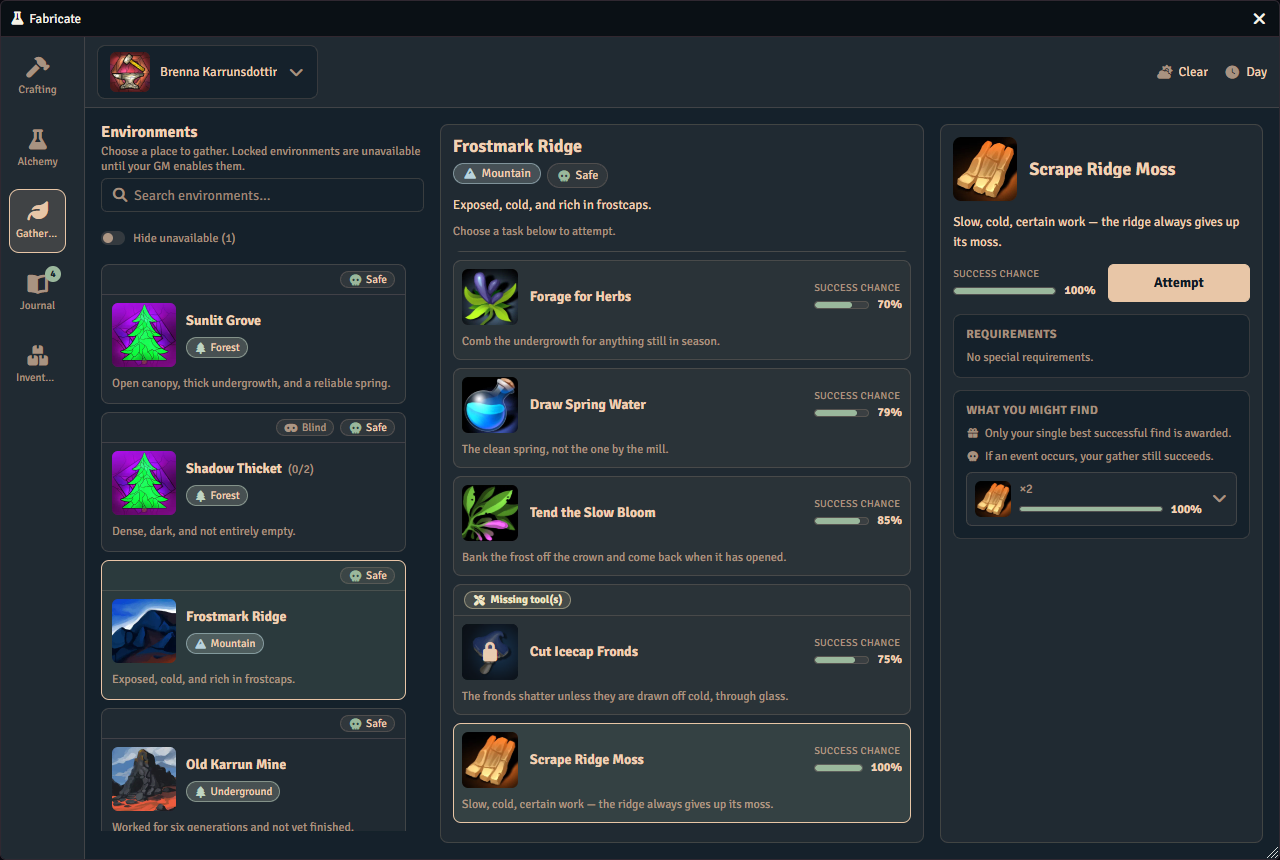
A blocked task stays in the list rather than disappearing from it, and says why.
An environment whose events are fully disclosed to players carries a second Events tab in the detail column, listing what can happen there beside the environment’s own event chance.