Components
Components are the building blocks of recipes. Instead of pointing at a single specific world item, recipes refer to a component, and any matching item can satisfy it. This means:
- Recipes work regardless of which specific world item instances exist
- Multiple world items can satisfy the same component reference
- You can reorganise your item compendiums without breaking recipes
A component now has two layers. The world Component catalogue holds one shared record per game-world item, carrying its name, description, linked item, and an optional world category, world tags, and world essence values. It is reachable from the World section of the Crafting System Manager’s rail without picking a crafting system first. The Component Rules screen, inside a crafting system, holds what that component actually does there. That is its category, its tags, its essences, its salvage setup and its progressive difficulty. Two more pages sit beneath this one: Complications, the consequences a component can fire when a progressive result produces it, and Salvage, what it yields when it is broken back down.
While Fabricate’s Experimental Features setting is on and Fabricate Premium is not installed, the header of both screens below can show a dismissable Fabricate Premium advert for crafting icons. Closing it hides it in your Manager window at once. Fabricate also tries to save that dismissal for the whole world, which hides it for every GM the next time they open the Manager. If that save does not go through, for example because your account cannot change world settings, the advert returns the next time you open the Manager. There is no control to bring it back once the world-wide dismissal is saved. The advert does not appear while Fabricate Premium is installed.
The world Component catalogue
Open the Crafting System Manager and choose Component catalogue in the World section of the rail. No crafting system needs to be selected.
A search field, a source filter, an essence filter, and a category filter share one row of the toolbar, and a Membership filter, a Sort by control, and an ascending/descending toggle share the row beneath. The source filter offers Any source, World items, Compendium, and Broken link. The essence filter offers All essences, Carries any essence, and No essences, then one option per essence in the world Essence catalogue, and it is left off the toolbar entirely on a world with no essences yet. The category filter offers All categories and No world category, then one option per category in the world’s category vocabulary in its order, then any other category a component already carries. It is left off the toolbar entirely on a world with no categories yet. Sort by offers Name, System count, and Source type. The list column runs edge to edge across the middle of the screen, so the rows and the pager at the foot share the same left and right edges with nothing wasted around them. The filter controls sit together in a bordered box at the top of the column, set in a little from the sides. Membership offers Any system, a pair of options naming whichever crafting system is currently selected in the rail, such as Has rules in Mythwright Forge and No rules in Mythwright Forge, and In no system at all, for a component no crafting system has adopted.
The list itself opens with a drop zone for dragging in items, spanning the full width of the row, so it scrolls with the rows rather than sitting fixed above the toolbar. It is the one way to create a component from this screen. It is not the only way a world component comes to exist, because importing items into a crafting system creates them too.
Each row starts with a checkbox, then the component’s icon and name. A pill beside the name states what kind of source it has, Foundry item, Compendium, or No source item, and a second Broken link pill appears when a linked world item’s address no longer resolves to anything. Below the name, a second line shows the component’s description, or says it has none. When the component carries essence values, a run of chips sits before the two stat columns, one per essence and none at all for a component with none, each showing its glyph and a count in that essence’s own colour. Two right-aligned columns state how many recipes name it and how many of your crafting systems currently have rules for it, as a fraction such as 2/6 systems. A pencil control at the row’s trailing edge, titled Open catalogue entry, opens the component’s full entry directly.
World items narrows the list to components linked to an item in this world’s Items directory, and Compendium to components linked to a compendium entry. Broken link shows only the components carrying the Broken link pill. A compendium link is never reported broken here, because the catalogue checks addresses against the world’s own Items directory alone. Carries any essence and No essences narrow the list by whether a component carries the chips described above at all, and choosing a named essence narrows it to components carrying that one. No world category shows components with no world category, and choosing a named category shows only components in that category. System count sorts by how many crafting systems have rules for the component. Source type groups compendium-linked components first, then world items, then components with no source item, or the reverse when you flip the toggle, with each group kept in name order either way.
Inspecting a component
The catalogue opens with the first row on the page already selected, so the inspector on the right is never empty while there is something to show. Select any other row to inspect it instead. Changing the search, the filters, the sort, or the page never moves your selection to a different row. The inspector opens with a Catalogue entry heading, the component’s name over a caption naming its source, a Source identity card, and a Global tags card.
The Source identity card states the source item’s identifying address and any aliases recorded for it. The Global tags card states the component’s world category, or says there is none, then lists its world tags as chips below, or says there are none, and carries an Edit link to the world Tags & Categories screen.
Below those two cards, a roster lists every crafting system in the world, not only the ones that have rules for this component, and heads itself with how many of them do, as a fraction such as 1 / 6. Every row carries a Rules link whether or not that system has rules yet, so the roster is also how you reach a system to add this component to it, and the rows that do have rules are marked out from the rest. The roster pages five systems at a time. Where no system has rules for the component at all, the roster says so in place of the list, and explains that the component is registered in the world but unused. Open catalogue entry, pinned at the foot of the inspector, opens the component’s full entry.
Creating a component from an item
Drag an item from the Items sidebar or a compendium browser onto the drop zone at the top of the list.
- If the item is not yet linked to any world component, Fabricate creates a new one and opens its entry.
- If the item is already linked to a world component, by that item or by an alias it also matches, Fabricate opens the existing entry instead of creating a duplicate.
- An item that belongs to an actor, such as one on a character sheet or an unlinked token, cannot be dropped here. Drop the item from the Items directory or a compendium instead.
This drop zone creates the shared world record on its own. It does not add the component to any crafting system. Add it to a system from the entry’s per-system rows, or from a crafting system’s own Component Rules screen, described below. Importing an item into a crafting system also registers a world component, and the system holds it at the same time, as described under Imports also register world components.
What the catalogue actually shares
A world component’s name, description, linked item and world tags are authored here and are not yet read by any crafting system. Editing them here changes what this catalogue and its entry show, and nothing else, until each crafting system’s own rules are what a recipe actually reads.
The world category and the world essence values are different. Every crafting system whose Component Rules currently inherit the world category, or the world essence values, resolves those from here, and changing them changes what those systems resolve immediately. A system that overrides either one keeps its own instead, and is untouched by a change made here.
Bulk editing components
Tick a row’s checkbox to open the bulk panel in place of the single-component inspector. It opens with a Bulk edit heading, a Clear control in that heading that empties the whole selection, a count such as 3 components selected, and a hint to pick the systems to add them to, stage a category, tags, or essence values, then commit below. From there you can stage four kinds of change, across five groups:
- Membership change and Systems. Choose Add to or Remove from for the direction, then tick one or more crafting systems in the Systems group beside it. Every group is the same kind of inset: a search field, a list of rows shown five at a time, a pager, and a note beneath, so you can see and search the whole set without a separate popup, and each group’s heading carries its own Clear that returns only that group to leave unchanged, keeping the rows you ticked. Adding gives every selected component fresh rules in each chosen system, inheriting the world category. Removing drops those rules, rewrites every recipe in those systems that names the removed component, and disables a recipe left without a usable ingredient set or result because of it. The world record is untouched, and no other system is affected.
- World category. The rows are a single choice: pick one to set it on every selected component, or pick No world category to clear the category itself. Like the entry’s own category field, this card offers the world vocabulary’s categories and nothing else, so on an upgraded world it lists what you have authored in Tags & Categories rather than the categories your crafting systems carried across. The reserved General category is refused here too.
- World tags. Each row cycles between leave unchanged, add, and remove across every selected component, and the heading counts how many you have staged in each direction. Once you have staged at least one, the tags you touched appear as their own run of chips above the inset, coloured by direction, so the whole staged change is visible without scrolling the list. The rows are the world vocabulary’s tags, so a world with none yet says so and points you to Tags & Categories.
- Essence values. One row per essence in the world Essence catalogue, each with its glyph in that essence’s own colour, a count of how many of the selected components already carry it, and a stepper that reads as unchanged until you step it. Stepping a value up sets it as the world essence value on every selected component, which every crafting system that has rules for it follows unless that system overrides its own, and stepping back down to 0 clears it there instead, which the staged chip above the inset shows as removed. A crafting system that overrides its own essence values for a selected component is untouched by this group. If the world has no essences yet, the group says so and points you to the Essence catalogue.
| What stays per component | What bulk editing changes |
|---|---|
| Name, description, linked item and aliases | Which crafting systems have this component |
| Its world category | |
| Its world tags | |
| Its world essence values, inherited by every system that has rules for it unless that system overrides its own |
The dock at the foot of the panel spans the whole inspector. Its commit button reads Stage a change to write it to 3 components until something is staged, then names the write it is about to make, such as Set the world category on 3 components, Update world tags on 3 components, or Set essence values on 3 components, or counts the records when several kinds of change are staged at once. Fabricate applies every staged change one at a time, so a large selection across several systems takes a moment. A change that is refused, such as adding a component to a system where another component already claims the same source item, is reported as it happens and does not stop the run. A change that fails outright is counted instead, and once the run has finished a notice says how many components could not be updated. The selection clears when the run finishes either way, and nothing is said when every change landed.
A delete control sits in the same dock, full width beneath the commit button, and deletes every selected component that no crafting system currently has rules for, along with each one’s world defaults. A selected component any crafting system still has rules for is left alone, and the confirmation names which systems are holding it back, the same refusal the single entry’s own delete makes for one component at a time. Recipes that reference a component this control does delete stop resolving. It is a two-step control, and both labels count only the deletable ones, the selected components no system holds. The idle label states that count, such as Delete 3 components…, and arming it keeps the same count while switching the wording to a confirm state that names it again against deleting them from the world, and a second click confirms. When every selected component is held by a crafting system, the normal case on an upgraded world, there is nothing to count: the idle label reads Delete from the world… with no number. Clicking it does not arm a real confirmation. It reads Cannot delete instead, and the note beside it names which components are held and by which systems.
The world Component entry
Choose Open catalogue entry on a selected row, or drop a new item onto the catalogue, to open a component’s entry. The header band across the top carries Back and Save entry, with an Unsaved changes marker while a change is pending. Two tabs sit below it, Catalogue entry and Validation.
Identity
For a component linked to a Foundry item, the name and description are shown as read-only text under a Linked Foundry item pill, and a note explains that they refresh from the linked item and that every system shows the same three. You cannot type over them here. For a component linked to a compendium entry, the pill reads Linked Compendium entry instead, and the name and description shown are the ones taken when the item was linked, not read live from the compendium. Dropping the item onto the Source identity card again takes a fresh snapshot. Only a component with no linked source item takes typed Name and Description fields instead.
Save entry holds every edit made on this screen and writes them together when you press it: the name and description on a component with no linked source item, then the world category, the world tags, the world essence values, and the aliases, in that order. The Unsaved changes marker lights while any of them is pending, so Save entry covers a linked component’s category, tags, essence values, or aliases even though its name and description cannot be typed over. If part of the save fails, the rest of the sequence stops there and whatever had already been written stays written. Where Fabricate can name what happened, it tells you which part could not be saved and, if anything had already landed, what that was. The linked item itself, adding or removing this component from a crafting system, and deleting the entry, take effect immediately and are not part of what Save entry writes.
If you leave with unsaved changes, Fabricate asks whether to save, discard, or keep editing.
Source identity
Drop an item onto this card’s drop zone to link or replace it, or choose Unlink to remove the link. It is the only drop zone on the entry, and the identity card above it carries none. Replacing the link takes a fresh name, image, and description snapshot from the new item. Replacing the source takes effect in every crafting system at once. Copy copies the linked item’s identifying address.
Aliases lets you add other item addresses this component should also be recognised as. This is useful when the same component has previously been represented by more than one item, for example after re-pointing a compendium link, so copies players already hold keep matching it.
World classification
One World classification card holds both the component’s category and its world tags.
Pick the Category from the field, or leave it at No world category. It opens as Fabricate’s own themed list rather than your browser’s native drop-down, to match the rest of the screen. The options are the world’s own category vocabulary and nothing else, so a category that exists only in one crafting system’s rules is not offered here. While the world has no categories of its own, No world category is the only option, and Edit world vocabulary on the same card is where you add one. A category set on this record before the vocabulary held it stays shown in the field, but is not offered again once you clear it. The reserved General category is never offered as an option here, whatever capitalisation or spacing another system used to author it, because it is the fallback every component uses already. A note beneath the field tells you what is actually happening, stating how many systems currently inherit this world category and how many override it locally, once at least one system has rules for it. Choosing a category stages it, and it does not take effect until you press Save entry.
Click a tag pill to apply or clear that world tag on the record, which also stages it for Save entry. The pills are the world vocabulary’s tags, whether or not any component applies them yet. A tag the record applies but the world vocabulary no longer holds is drawn too, after the vocabulary’s own pills, lit like any other applied tag. Clearing it stages its removal like the pills above, and once saved it is not offered again. A note beneath them states how many world tags are set on this record, and, if any are muted for a crafting system, how many. Edit world vocabulary opens the world Tags & Categories screen, where the tag list itself is authored. A new world tag cannot be minted from this card. Add it to the vocabulary first, then it appears here to apply.
World tags and the world category and name behave differently. Every crafting system whose rules inherit the world category resolves that value. World tags are visible on this entry and, read-only, on the Component Rules screen, but are not yet applied to what any crafting system’s own tag list actually is.
Essence contribution
Below World classification, an Essence contribution card lists one tile per essence currently enabled in the world Essence catalogue, each in that essence’s own colour, with a stepper for how much of it this component contributes. An essence you have since turned off in the Essence catalogue stays on the card, still clearable, if this component already contributes to it. A note beneath the grid states how many systems currently inherit these world values and how many override them locally, once at least one system has rules for the component, on the same pattern as the category note above. Changing a value stages it, and it does not take effect until you press Save entry. While the world has no essences yet, the card says so and points you to the Essence catalogue instead of the grid.
Systems using this component
Below the Essence contribution card, a card lists every crafting system. Filter by All, With rules, or Without, each stating its own count, and search by name. Each row shows the system’s name and its resolution mode, and, for a member system, a short summary of what it currently resolves.
- View system rules opens that system’s Component Rules screen for this component. It appears on member rows only.
- The exit icon beside it removes this component from that system once you confirm. Removing deletes that system’s rules for it, rewrites every recipe in that system that names it, and disables a recipe left without a usable ingredient set or result because of it. The world record and every other system are untouched. If the removal does not complete, Fabricate tells you so, with the reason.
- A system this component is not yet in carries a dashed Add to system button instead. Adding creates rules in that system that inherit the world category and the world essence values.
Add to systems…, in the card’s own header, reveals the systems this component is not yet in so you can add it to any of them from the same list.
Fabricate does not currently offer a way to mute an individual world tag for one crafting system. The tag is set on the world record as a whole, so there is no per-system exception to author. As stated above, no crafting system reads a world tag list yet in any case.
Deleting a component
At the foot of the entry, a danger card names how many crafting systems currently have rules for this component and carries Delete entry.
If no crafting system has rules for this component, confirming removes it for good, along with the world record. If one or more crafting systems have rules for it, the card explains that first, and the confirm control itself reads Cannot delete instead of letting you proceed. Remove the component from each of those systems first, using the systems card above. Because the world-scope upgrade gives every pre-existing component a full set of system rules, this refusal is the normal state for most components on an upgraded world, not an edge case. It is also the normal state for a component you imported, because the system you imported it into holds it.
Validation
The Validation tab opens straight onto its verdict, with no heading of its own. A panel on the left reads 2 blocking issues, or however many there are, with Clear these before saving beneath it, or Passing with warnings with how many warnings will not stop a save, or All clear when every check passes. Beside it, three rows count the Passing, Warnings, and Blocking checks. The tab’s own label carries the blocking count, the warning count when nothing blocks, or a tick when every check passes. Below the verdict, the checks are grouped as Source item, Identity, World classification, and System rules, and each row is badged Pass, Warning, or Blocking. A missing source item or an empty name blocks saving. No world category and no world tags are reported as warnings, not blockers, because a legitimately blank entry is not broken. A system that inherits an unset world category simply supplies its own.
How players see it
A rail on the right, present on both tabs, shows the same preview a player sees: the component drawn as an inventory tile with its art filling the square, just as in a player’s inventory, its world tags, its essence values as a run of chips, named and counted, each in that essence’s own colour, and a short note on its scope. Below that, Used by lists the recipes that consume it, and Produced by lists what yields it. The rail updates live as you edit the entry. It is the same rail a crafting system’s own Component Rules editor draws, narrowed to what that system resolves. On a narrow window the rail moves below the tab strip and its cards instead of standing beside them, each keeping its own full height while the whole pane scrolls.
Component Rules
Open a crafting system, then choose Component Rules in its rail to work on what a component does in that system. That is its category, its tags, its essences, its salvage setup, and, in Progressive mode, its difficulty.
Add from catalogue, in the header, opens a picker listing every world catalogue component this system does not already hold. Each row names the component, states what kind of source it has, and says how many other systems have rules for it. Search by name and tick as many as you want, and the foot of the picker keeps count of how many are ticked. The confirm button reads Create rules; the picker’s title names the system the components are joining, and the count in its foot says how many. As the picker’s own subtitle says, new rules inherit the world category and the world essence values until this system overrides them, and nothing else is copied: no tags, no salvage setup, and no difficulty. Fabricate adds the ticked components one at a time. If one cannot be added, for example because another component in this system already claims the same source item, the rest are still added, and the picker stays open with the refused rows still ticked under a sentence counting how many could not be added. The picker closes on its own only when every ticked component was added, or when you press Cancel. It also closes if you move to another screen while it is open. Each time it opens it starts fresh, with no search text or ticks left over from an earlier visit, and it always offers against the crafting system currently selected in the rail. If you switch to another crafting system while the picker is still adding, the run finishes against the system it started with, and the picker then starts fresh for the system you moved to. When there is nothing to list, the picker says why. It tells you when the world catalogue has no components at all, when this system already has rules for every component in the catalogue, and when no component matches your search.
The list opens with its first component already selected, and a component you reached by a link from its world entry, or had selected before, is kept instead. Changing the sort, a filter, or the cohort never moves the selection, and a dimmed ghost row from the world catalogue is never selected for you. Selecting a component that has a world component shows a Shared identity card in the inspector, stating that its name, art, and description are authored in the world Component catalogue, and naming how many other systems also have rules for it when there is at least one, with an Edit shared identity link to that component’s world entry. The editor carries its own version of this card too, described below.
Adding Components
You can add items one at a time or import an entire compendium pack at once.
Single-item drop
Drag any Item document from the Items sidebar or from an open compendium browser and drop it onto the Component Rules page.
- Open the Items sidebar or the compendium browser
- Drag the item onto the drop zone at the top of the page, or anywhere on the components list below it
- The item appears in the list of components
The list accepts a drop wherever you release it, including the empty “No components yet” area. The toolbar above the list and the page controls below it do not take drops.
If the item is already registered in the system, whether by the item you dropped or by a copy of the same compendium entry that still carries the entry’s name, the drop reuses the existing component instead of creating a duplicate. Re-importing an item whose own UUID a component already claims never changes which compendium entry that component claims. If the stored name, image, or linked item is out of date, Fabricate updates the component in place and remembers the previous link so items already in characters’ inventories still match.
If Foundry reports an original compendium source but that source no longer exists, Fabricate links to the item you dropped instead, remembers the broken source link as a fallback, and warns the GM. Fabricate remembers the broken link only when no other component claims it, and warns you either way. The exception is importing again an item that is already registered: Fabricate adds no fallback and shows no warning for it.
Duplicating an item to author another component is fully supported. Each component you register is given its own durable identity, so a player’s owned copies always resolve back to the right component. You can right-click an item in the Items sidebar, choose Duplicate, change the copy’s name, art, and setup, and register that copy as a separate component. The copy becomes its own component and does not collide with, or overwrite, the original. This holds even when the original was imported from a compendium.
The same applies to an item built from a compendium entry and then changed into something else, with a different name. For example, every dnd5e spell scroll of a given level is built from one template scroll, so each scroll you import becomes its own component. Fabricate tells a copy of the entry from something built from it by name: a copy that keeps the entry’s name is the same thing, and a differently named one is its own. A renamed copy of a compendium entry is therefore registered as its own component and does not claim the entry, so an item a player drags straight from the compendium does not match it. Hand out copies from the item you registered. A component that already absorbed several items before this was fixed stays merged. Delete that component and import the items again, as described in Every item I import updates the same component. Items that share a compendium entry which can no longer be found, because the pack is missing or disabled or the entry was deleted, are registered separately. This holds for components, recipe items, and tools alike, and the first import of each item still warns about the broken link. The split is permanent once made, and restoring the entry later does not rejoin the items. To remove an unwanted split, delete the extra component, recipe item, or tool, then restore the entry and import the item again. For a component, once the extra one is deleted, you can instead use Replace Source on the original component to link it to the item. A copy that was distributed to players before you updated Fabricate can be reconciled with Repair Item Data.
After import, Fabricate also listens for linked Foundry Item updates from a GM client. When a linked item changes its name, image, or description, the component linked to that item refreshes its stored name, image, and display-safe plain-text description automatically. Changing a duplicate, a renamed copy, an unregistered world copy, or a copy on a character sheet does not change a component linked to a different item.
If the dropped document is an Actor, JournalEntry, Scene, or any other non-Item type, a warning notification is shown and nothing is imported. If the drag data cannot be resolved to any UUID, the same warning is shown.
Bulk compendium pack drop
To import all Item documents from a compendium pack at once, drag the compendium pack header (the title row in the compendium directory sidebar, not an individual entry within it) onto the drop zone. Fabricate iterates over every Item document in the pack and adds each one.
- Items not yet in the system are added as new components.
- Items already registered, whether by the item itself or by a copy of the same entry that still carries its name, are updated in place rather than duplicated.
- Items built from a pack entry and given a different name are added as their own components, the same as a single drop of that entry.
- Items already registered and already up to date are skipped.
- A single crafting system cannot contain two components that claim the same source item.
- A summary notification reports how many items were added, updated, and skipped.
- If an item’s recorded original source link is broken, Fabricate links to the imported item instead, remembers the broken link as a fallback, and warns once for the bulk import. Items that are already registered add no fallback and no warning.
- Non-item document types in the pack (Actors, JournalEntries, etc.) are ignored.
Import from the Compendium Directory
You can also import an entire Item compendium without opening the admin panel. As a GM, right-click an Item compendium in Foundry’s Compendium Directory sidebar and choose Import Items into Crafting System.
- Right-click the Item compendium in the Compendium Directory sidebar
- Choose Import Items into Crafting System
- Pick the target crafting system in the picker dialog and confirm with Import
The picker always opens so the import is a deliberate choice rather than a single click, even when only one crafting system exists. If no crafting system exists yet, Fabricate tells you to create one in the Crafting System Manager first, and nothing is imported.
This action is offered only to GMs, and only on compendiums that hold Item documents. It runs the same import as the bulk pack drop, so it adds new components, updates registered ones in place, skips items already up to date, and reports the same added, updated, and skipped summary. Broken original source links fall back to the imported item and warn once for the whole import, exactly as the drop-based bulk import does.
Folder drop
Drag a world folder containing Item documents onto the drop zone to import every Item in that folder. Fabricate expands the folder, applies the same de-duplication as single-item drops, and shows a summary notification with the number of items added. If any imported item has a broken original source link, Fabricate warns once with the affected count. Items that are already registered add no fallback and are not counted. If the folder contains no Item documents, a notification says so and nothing is written.
Imports also register world components
Every import above also registers the component as a world component in the world Component catalogue, and the system you imported into holds it. That covers a single drop, a pack drop, a folder drop and its category mapping step, and the Compendium Directory action. Before, an imported component had no catalogue entry, so it could not be added to another system from the catalogue.
- If the item is not linked to any world component, Fabricate creates one carrying the component’s name, image, and description. A newly registered component carries no world category and no world essence values, so the system resolves its own values until a world category or world essence values are authored. A category you chose for a folder in the mapping step is an ordinary value of this system. A world category authored later replaces it in this system unless the system overrides it.
- If the item is already linked to a world component, because you dropped it on the catalogue or another system imported it, this system adopts that one instead of creating a second. The new component follows any world category and world essence values that world component already carries, like any component added from the catalogue. A category you chose for a folder in the mapping step is kept as this system’s own against a world category the adopted world component already carries.
- An item that belongs to an actor is imported as before and does not become a world component.
A component held by one system is labelled as authored in the world catalogue, and no longer reads as shared with other systems. The rules editor says “Name, image and description are authored in the world catalogue. Everything below belongs to {system} alone.”
If the world catalogue cannot be updated, the import still succeeds and one warning says so. The warning reads “The items were imported, but the world Component catalogue could not be updated. Import them again to add them to it.”
Importing again and its limit
Importing again an item whose component has no world component gives it one. That is how components imported before this change are repaired. Drop the items again, or import the folder or pack again. Nothing else about those components changes, and they keep every value they had.
There is one limit. If the world component for that item has a different id from this system’s component, this system’s component is left without one. This is typically because another system imported the item first. Linking it would mean renumbering a component that recipes already reference, and an import never does that.
To recover, work in this order.
- Check what uses the other system’s component for that item, because removing it rewrites the recipes that name it.
- Remove that component from every crafting system that holds it. The Systems using this component card on its catalogue entry and the bulk remove both do this. Removing it from a system does not delete its catalogue entry.
- Delete the world component’s entry in the catalogue. This only becomes possible once no system holds it.
- Import the item again.
In a world where several systems hold the same item, import it again first in the systems that already hold it. Importing it into a new system first gives that system a world component that the older components cannot adopt.
Bulk pack import requires that Foundry emits a compendium-type drag event from the pack header row. If your Foundry version does not support this drag shape, use single-item drops instead, or import the pack through the API.
Browsing Components
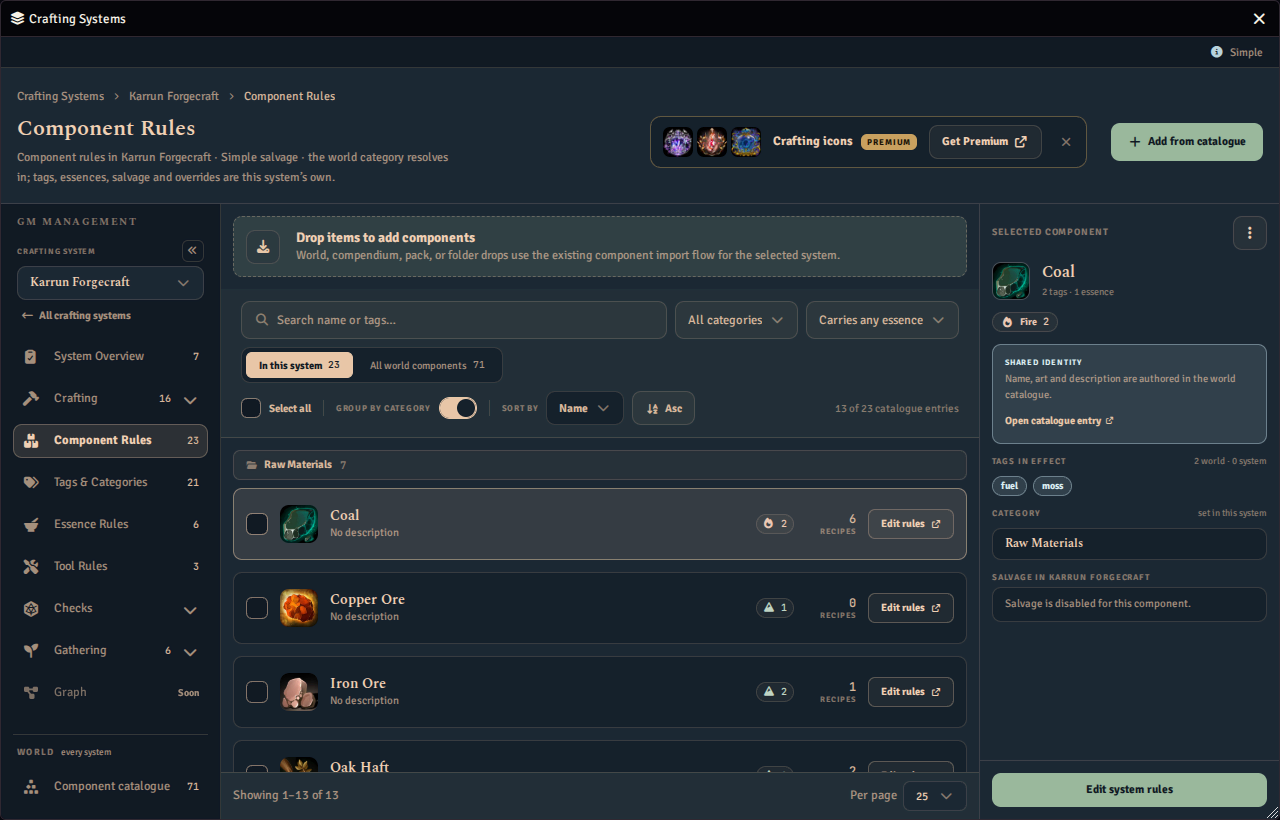
The Component Rules screen lists the system’s components as a single grouped list. Each row shows the component’s name and a short description line, together with a Salvage pill when the component can be broken down, a run of essence dots each in that essence’s own colour, a Recipes count, and a labelled Edit rules control.
The toolbar above the list gives you:
- a Category filter, defaulting to All categories
- an essence filter, defaulting to All essences, which also offers Carries any essence and No essences ahead of the system’s own essences
- a Select all checkbox, which opens the bulk panel in the inspector once anything is selected, described under Bulk editing rules in this system below
- a Group by category switch, on by default
- a Sort by control offering Name, Category, Essences, Tags, and Salvage, with a button to flip between ascending and descending
While Group by category is on, the list is split into a heading per category with a count of the components in it. Groups do not collapse. The reserved General category is always shown last, because it is the catch-all rather than a category you chose. Long lists are paged, and the count above the list tells you which components you are looking at.
A component’s category here is this system’s own resolved value. See Category below for how that relates to the world category. Its essence values, in the row’s dots and in the inspector, are this system’s own resolved values too, the world’s while this system inherits them and its own once it overrides them, so an edit in the world Component catalogue is reflected here at once for every inheriting component.
Your filters, sort, grouping, and page survive opening a component and coming back, so working through a long list does not reset your place each time.
Bulk editing rules in this system
Tick the checkbox on a row, or use Select all, and the inspector on the right becomes a bulk panel with the same anatomy as the world catalogue’s. It opens with a Bulk edit heading, a Clear control in that heading that empties the whole selection, a count such as 3 components selected, and a reminder that staged changes are written to this system only. A note explains that names, art, and source links are world catalogue data and stay per component, and that what you change here is this system’s own rules: its category, its tags, and its essence values. Three insets follow, each with a search field, rows shown five at a time, a pager, and on every row a count of how many of the selected components already carry that value, such as 2/3:
- Category here. Pick one row to set it as this system’s category on every selected component, or pick it again to leave the category unchanged. The note beneath says the value is written as this system’s own and that the components’ world classification is untouched. There is no row for switching components back to inheriting the world category in bulk. Do that on a component’s own Component Rules page.
- Tags here. Each row cycles between leave unchanged, add, and remove, the heading counts the additions and removals staged, and the staged tags appear as chips above the inset. These rows change this system’s own tag list only. World tags are shown on each record and are not touched here.
- Essence values. One row per essence this system defines, each with its glyph in that essence’s own colour and a stepper that reads as unchanged until you step it. Once any row is stepped, applying writes the whole set of values shown on every selected component, so a row left at 0 strips that essence from them. A selected component that currently inherits its essence values from the world switches to override as part of the same commit, so the values you just staged are the ones this system resolves afterwards rather than being shadowed by the world map. A Will overwrite chip and a warning state how many of the selected components have authored values that will change.
When the system resolves progressively, a Progressive DC group also appears for setting one difficulty on every selected component. There is no bulk control for salvage.
The commit button in the dock reads Stage a change to apply to 3 components until something is staged, then names what it will write, such as Apply category + tags to 3 components, or Edit 3 components once more than two kinds of change are staged. Beneath it, Remove 3 components from Mythwright Forge… is a two-step control that removes the selected components from this system only, dropping their rules here while their catalogue entries and every other system stay untouched. Arming it switches the label to a confirm state that names the count and the system again, and the note beneath counts how many recipes will be rewritten and how many enabled recipes will be disabled. Both labels count only the selected components that have rules in this system. When none of them does, the label reads Remove from Mythwright Forge… with no number, arming it reads Cannot remove, and confirming writes nothing.
Bringing in world components this system has not adopted
Components you import into this system are already in the world Component catalogue, so they show up here for every other system to adopt. A component imported before that was added may be missing from the catalogue, and importing its item again adds it, as described under Importing again and its limit.
A two-way filter above the list controls which components you see:
- In this system shows components this system already has rules for. This is the default.
- All world components widens the list to every component the world Component catalogue holds, including ones this system has never adopted. The ones this system has no rules for yet use the same ordinary row styling as world essences that are not in the system. Each row shows the world component’s identity and description, a Not in this system chip with a circle-minus icon, and a primary Add to this system control. It does not show a bulk checkbox, essence badges, recipe statistics, or other facts that apply only after adoption. Select the component identity to keep browsing in Component Rules, or choose Add to this system to adopt it. After the list refreshes, an adopted component shows its ordinary member controls. Adopted and not-yet-adopted components share one page together, so a page you turn to can mix both kinds of row.
Each filter option states its own count.
Editing Component Rules
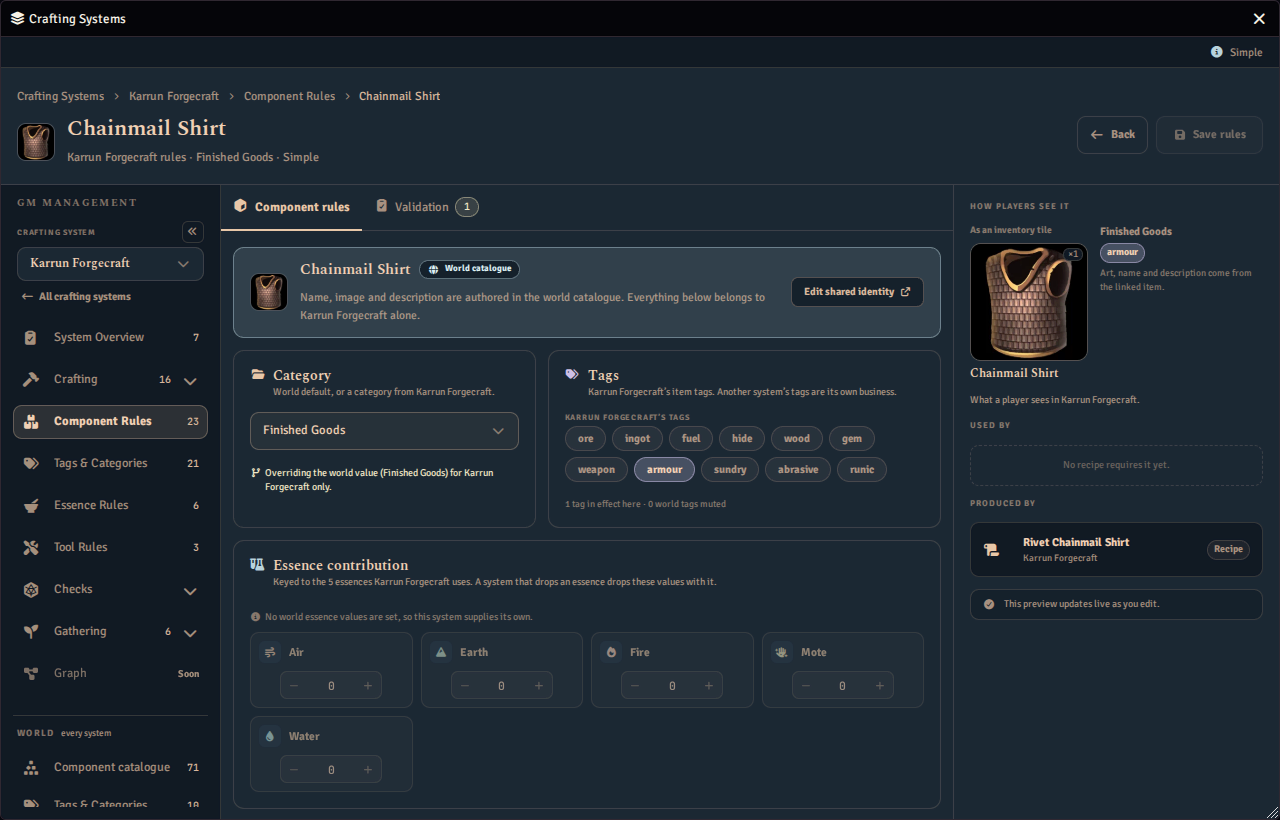
Open a component in the Component Rules screen to edit it. The editor’s main column is a single scrolling form, with a rail on the right, described under How players see it below. Back sits next to Save rules at the top, with an Unsaved marker while a change is pending. Two tabs sit below it, Component rules and Validation. If you leave with unsaved changes, Fabricate asks you to confirm first.
The page starts with one identity callout carrying the component’s icon and name. When the component has a world component, the callout also carries a World catalogue pill, a note, and an Edit shared identity link to the component’s world entry. The note says the name, image, and description are authored in the world catalogue, and counts the other systems that share them when there is at least one. A component held by this system alone says so without any count, so it never reads as shared with zero other systems. A component with no world component carries a note saying its name, image, and description are this system’s own instead. Items you import into a system are registered as world components automatically, as described under Imports also register world components. A component imported before that was added may still have none, and importing it again gives it one. Name, image, and description are never typed on this screen. They come from wherever they are actually authored, the linked item or the world entry.
Below the identity callout you set the component’s category, its tags, its essences, and its salvage setup.
Category
A component’s Category groups it in this system’s browser. Pick it from the drop-down. If the linked world component has set a world category, the drop-down’s first option reads Inherit from world, naming that value. Choosing it makes this system’s category follow the world value, and choosing anything else overrides the category locally, but neither takes effect until you press Save rules. The choice is staged like the rest of the page: the Unsaved marker lights for it, and leaving with it unsaved is covered by the same confirm-first guard as everything else here. The note beneath the field previews which value this system would resolve and whether that is inherited or overridden, updating live as you choose even before you save.
Tags
A Tags card sits beside Category.
While the linked world component carries world tags, they are listed at the top of the card, under a caption reading From the world. Each is shown lit or, if it is muted for this system, struck through and dimmed. This run is read-only, and Fabricate does not currently offer a way to mute one from any screen. The card carries no link of its own back to the world entry. Use the Edit shared identity link on the identity callout at the top of the page to reach it, where the world tags themselves are applied or cleared.
Below that, this system’s own tags are listed as a click-to-toggle pill run, under a caption naming the system. Each pill shows the tag name alone, and a lit pill is one that is applied here. A note beneath both groups states how many tags are in effect here and how many world tags are muted.
Essence contribution
Once this system has essences of its own, an Essence contribution card lists one tile per essence, each in that essence’s own colour, with a stepper for how much of each this component contributes. These values are keyed to the essences this system currently uses, so a system that drops an essence drops its contribution with it. If this system defines no essences, the card says so instead of drawing an empty grid.
While the linked world component has authored essence values, the card also carries its own Essence values row with an Inherited or Overridden state and a switch, set separately from the category choice above. While it reads Inherited, every tile shows the world’s own values and their steppers are locked, and a note beneath the row says this system is following the world values. Switching it to override starts this system’s own values from whatever the locked tiles were showing, so nothing moves, and unlocks the steppers. The note then says this system is overriding them. Switching back to inherit keeps whatever you had typed standing, ready if you switch to override again. Neither the switch nor a stepper takes effect until you press Save rules. While the linked world component has authored no essence values at all, the switch itself is left off the card, and the note beneath says so and that this system simply supplies its own values.
Salvage
A Salvage card names this system’s salvage resolution mode as a read-only pill, such as Routed by check, then an Enabled label and the switch that turns salvage on for this component. What the component actually yields, and how the resolution mode shapes the panel below the toggle, is covered in full in Component Salvage.
Progressive difficulty
When the system’s recipe resolution mode is Progressive, a Progressive difficulty card appears for setting the value spent against the crafting roll. See Setting Component Difficulty.
Complications
Once at least one activity in your system resolves progressively, a Complications section also appears for authoring the consequences that fire when this component is produced by a progressive result. See Complications.
Validation
The Validation tab lists the same checks as Component rules, grouped as Classification and Salvage. A check that does not apply to this system’s setup, such as an outcome-routing check on a system with no routed salvage, is left off rather than shown passing.
How players see it
A rail on the right, present on both tabs, shows the same preview a player sees in this system: the component drawn as an inventory tile, its category, its tags, its essence values as a run of chips, named and counted, each in that essence’s own colour, and a short note on its scope. Below that, Used by lists the recipes that consume it, and Produced by lists what yields it. The rail updates live as you edit, and states that art, name and description come from the world catalogue entry. It is the same rail the component’s world entry draws, narrowed to what this system resolves. On a narrow window it moves below the tab strip and its cards instead of standing beside them, each keeping its own full height while the whole pane scrolls.